Shopify Access Token Generation Guide
This page helps you choose the correct process for generating an access token for the Shopify Connector in v17. The Shopify part now has two different app flows, and they should be handled independently.
All users must start from the Shopify developer dashboard: dev.shopify.com/dashboard.
Note that this process requires a live domain; local environments (localhost) are not supported. If you are using an on-premise server, make sure that a database filter is applied in the Odoo configuration file.
Important:
- Shopify Connector version should be 17.0.7.1 or higher to use the custom app token generation method described here.
- The Shopify and Odoo steps run simultaneously. Open the Odoo wizard first and keep it open throughout the entire process. Do not close it until the token is generated.
1. Initial Setup in Odoo
These steps are the same for both Shopify app flows.
- Install the Shopify Connector module.
- In Odoo, go to Shopify → Configuration → Settings and click Set Shopify Authorization Details to open the wizard.
-
The wizard displays two URLs in the App Integration URLs section — the App URL and the Callback / Redirect URL.
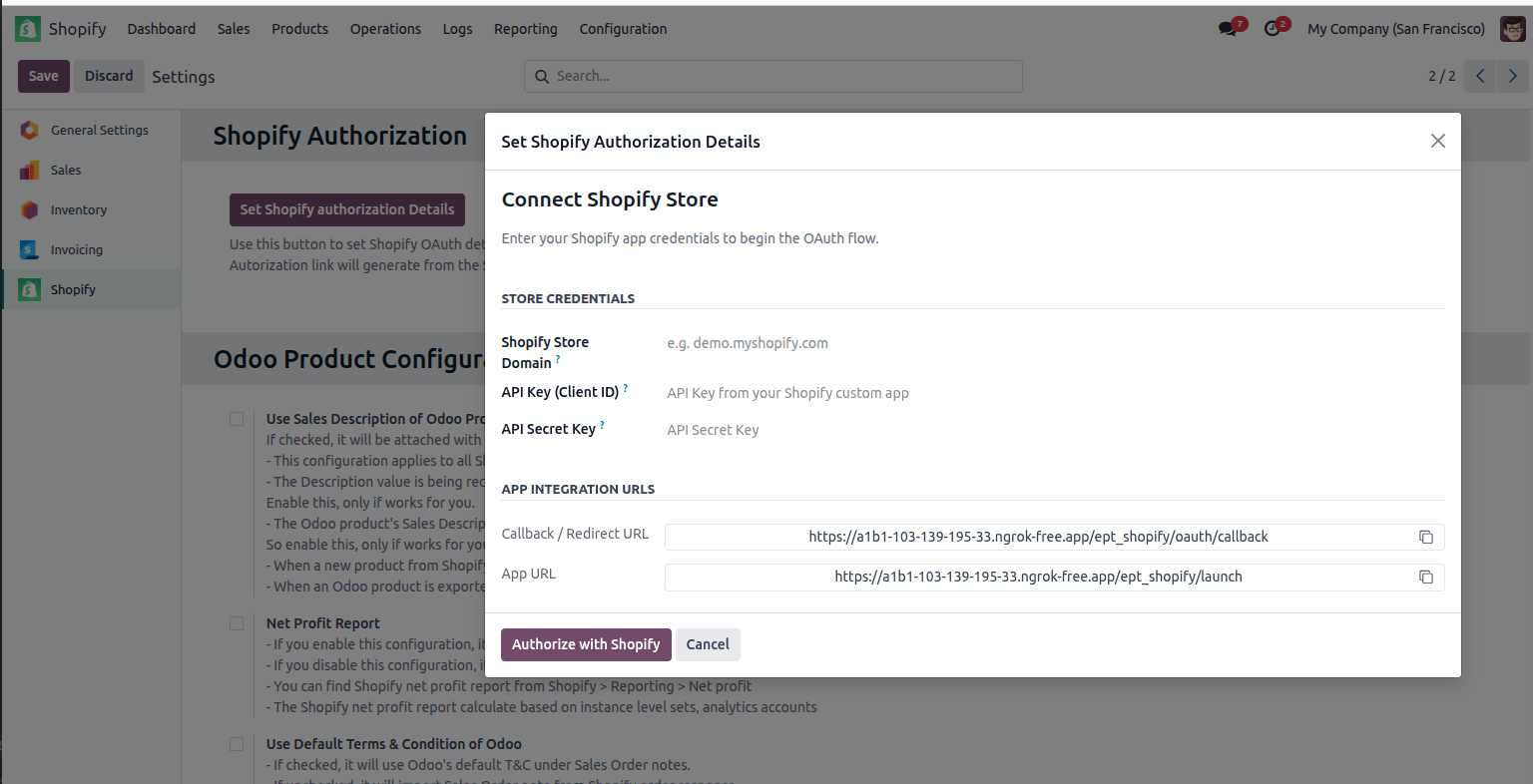
- Keep this window open. You will need both URLs in the Shopify steps.
2. Create the App in Shopify Developer Dashboard (Required)
Before selecting a flow, create the app from the Shopify developer dashboard.
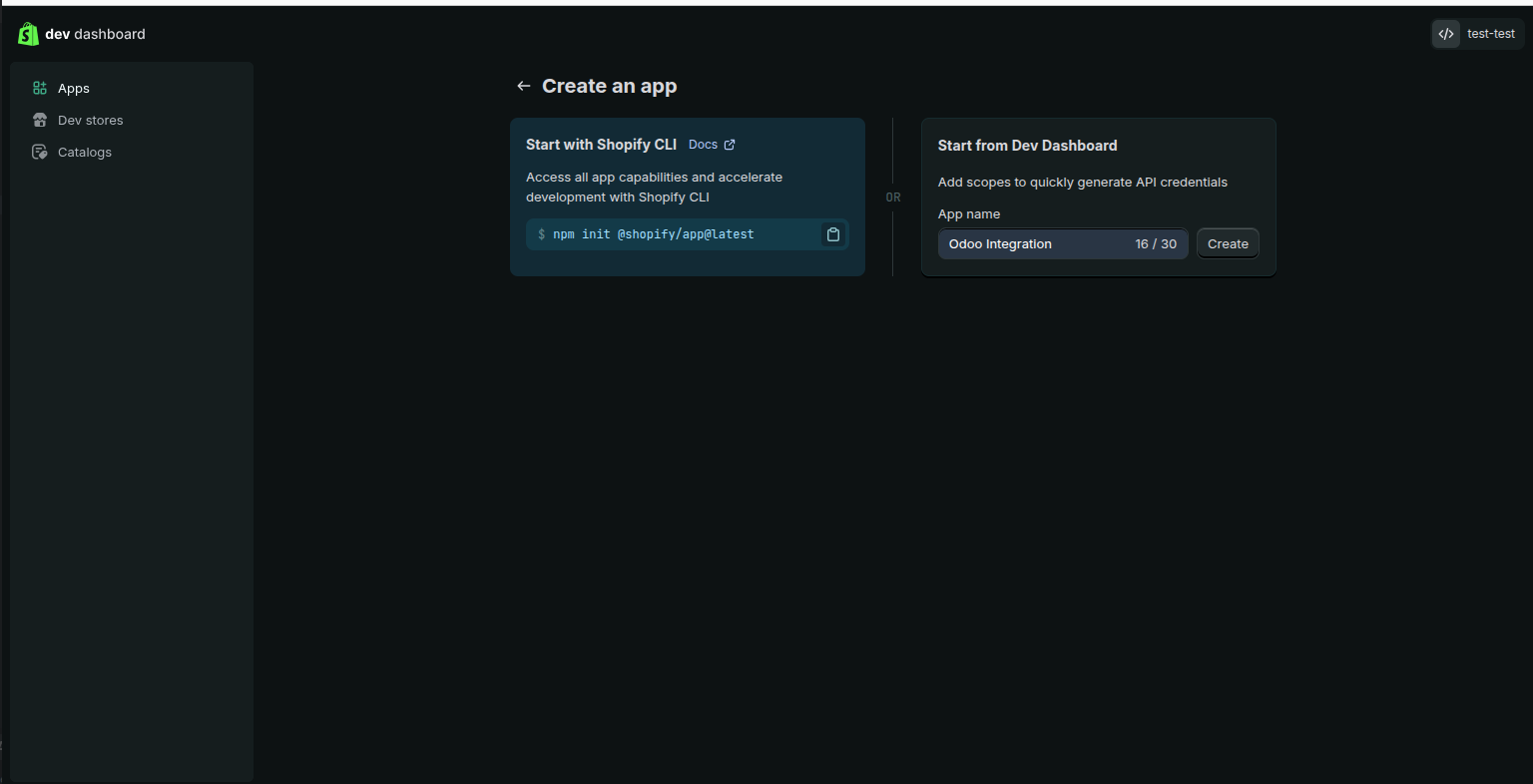
- Open dev.shopify.com/dashboard and log in.
- Click Create app.
-
Enter your App Name (for example, Odoo Integration) and click Create.
3. Choose the Correct Shopify App Flow
After the app is created, choose the matching guide based on installation behavior shown in the same app.
How to tell which path to use:
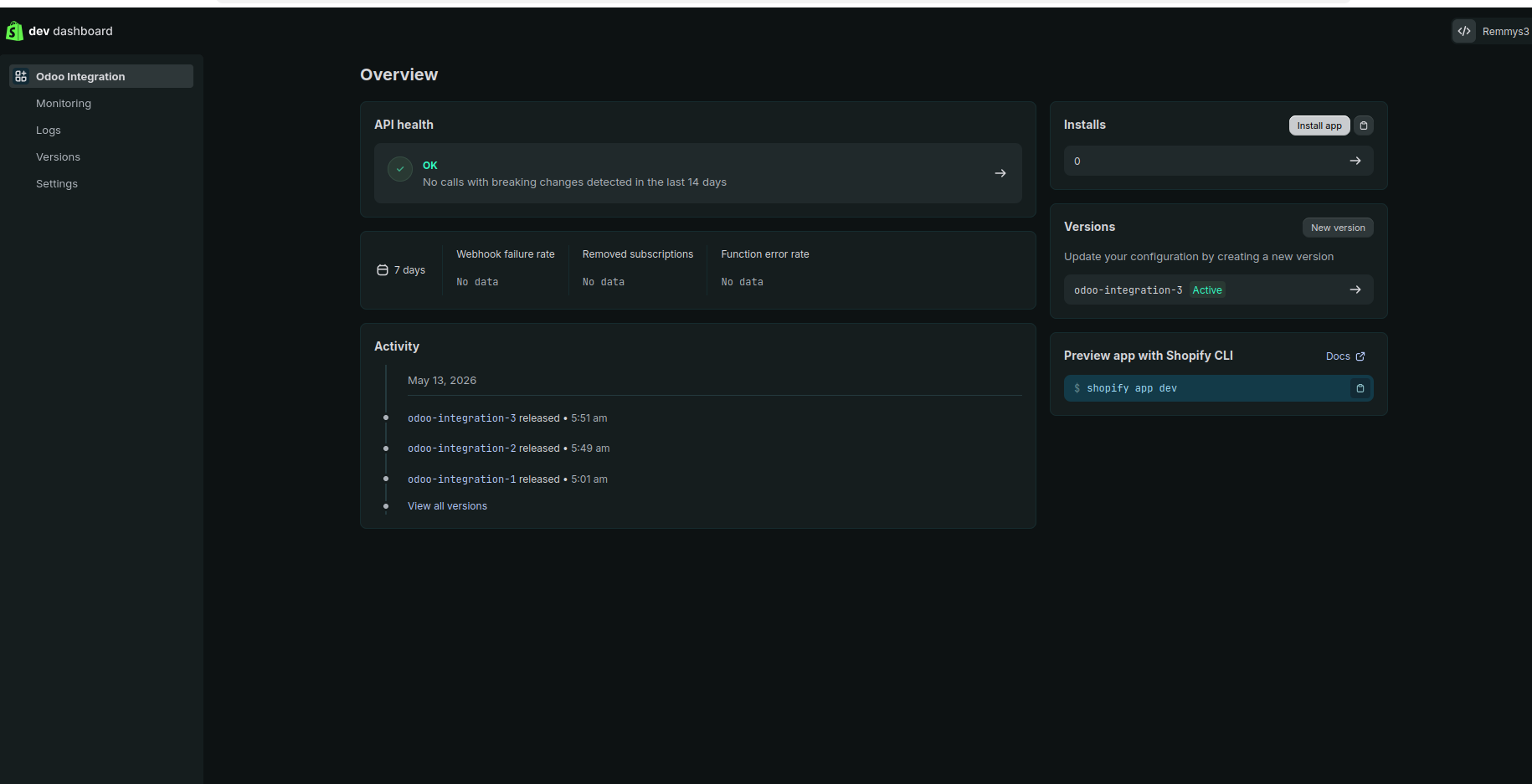
Path A — No Distribution section/card visible in the app overview. Only Install app is shown on the right.
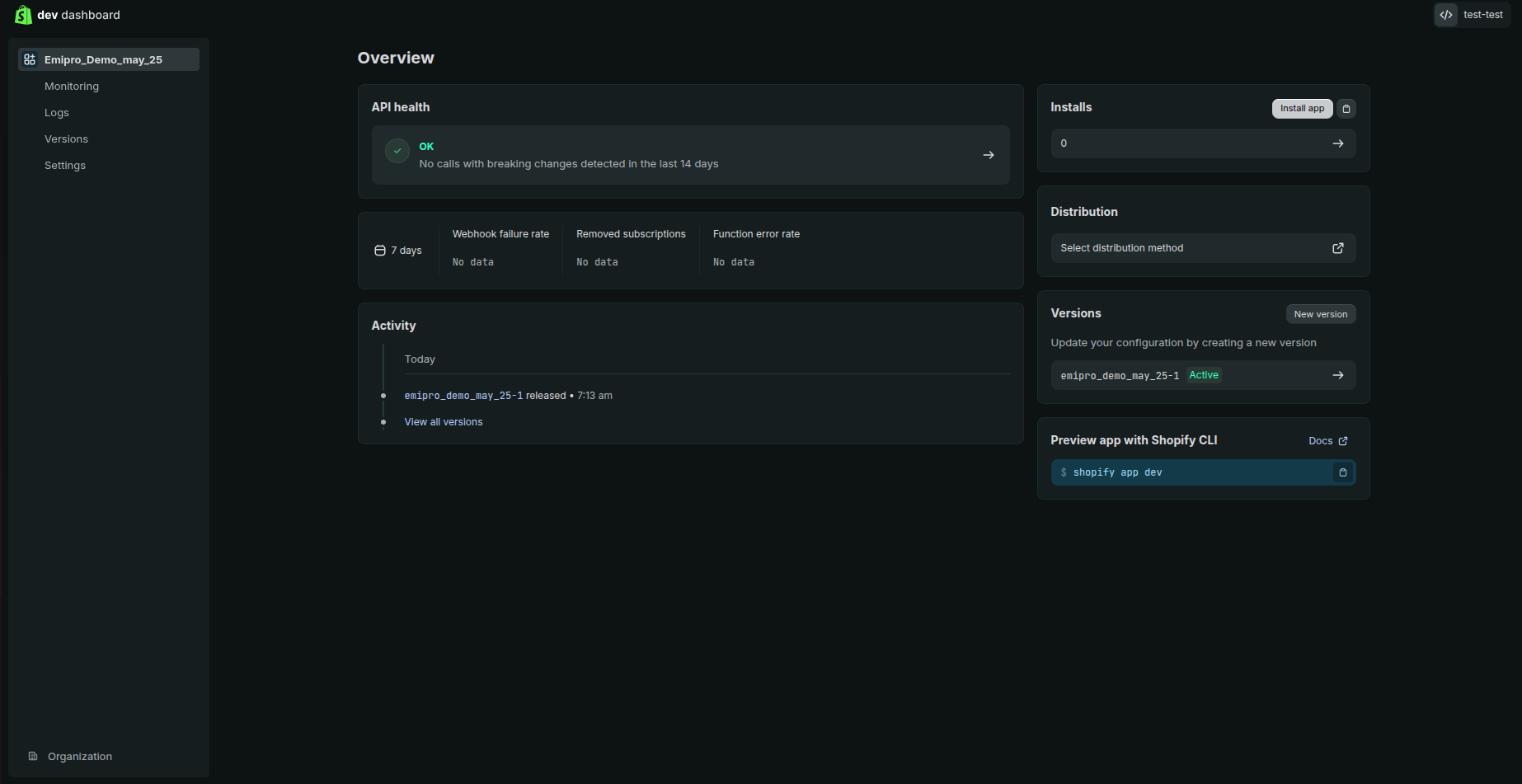
Path B — A Distribution section/card is visible in the app overview with a Select distribution method option.
Path A - Direct Install App
Use this path if:
- you do not see a Distribution section/card in the app overview.
Open this guide: Path A - Generate Token for a Direct Install App
Path B - Partner-Linked App (Custom Distribution)
Use this path if:
- the app shows a Distribution section/card, or
- the app is managed as a partner-linked app.
Open this guide: Path B - Generate Token for a Partner-Linked App
In this flow,
read_all_ordersmay require a separate access request before it appears.
4. What Happens After the Token Is Generated
Both paths end the same way in Odoo.
Option A — Create the Shopify Instance Immediately
- Click Create Shopify Instance → in the wizard.
- The instance configuration wizard opens, pre-filled with your store domain, API key, shared secret, and access token.
- Enter an Instance Name and select the Company.
- Click Create to verify your credentials and complete the setup.
Option B — Save the Token and Create the Instance Later
- Copy the token and store it securely, for example in a password manager.
- Click Close to dismiss the wizard.
- When ready, go to Shopify → Configuration → Instances → New and paste the token into the Password field.
Note: For multiple stores, create a separate app for each store and repeat the appropriate flow for that store.