Shopify Token Generation Guide
This guide covers the process of generating an access token for the Shopify Connector. Note that this process requires a live domain; local environments (localhost) are not supported. If you are using an on-premise server, make sure that a database filter is applied in the Odoo configuration file.
Important:
- Shopify Connector Version should be 16.0.7.0.0 or higher to use the custom app token generation method described in this guide.
- The Shopify and Odoo steps in this guide run simultaneously. Open the Odoo wizard first and keep it open throughout the entire process. Do not close it until the token is generated.
1. Initial Setup in Odoo
- Install the Shopify Connector module.
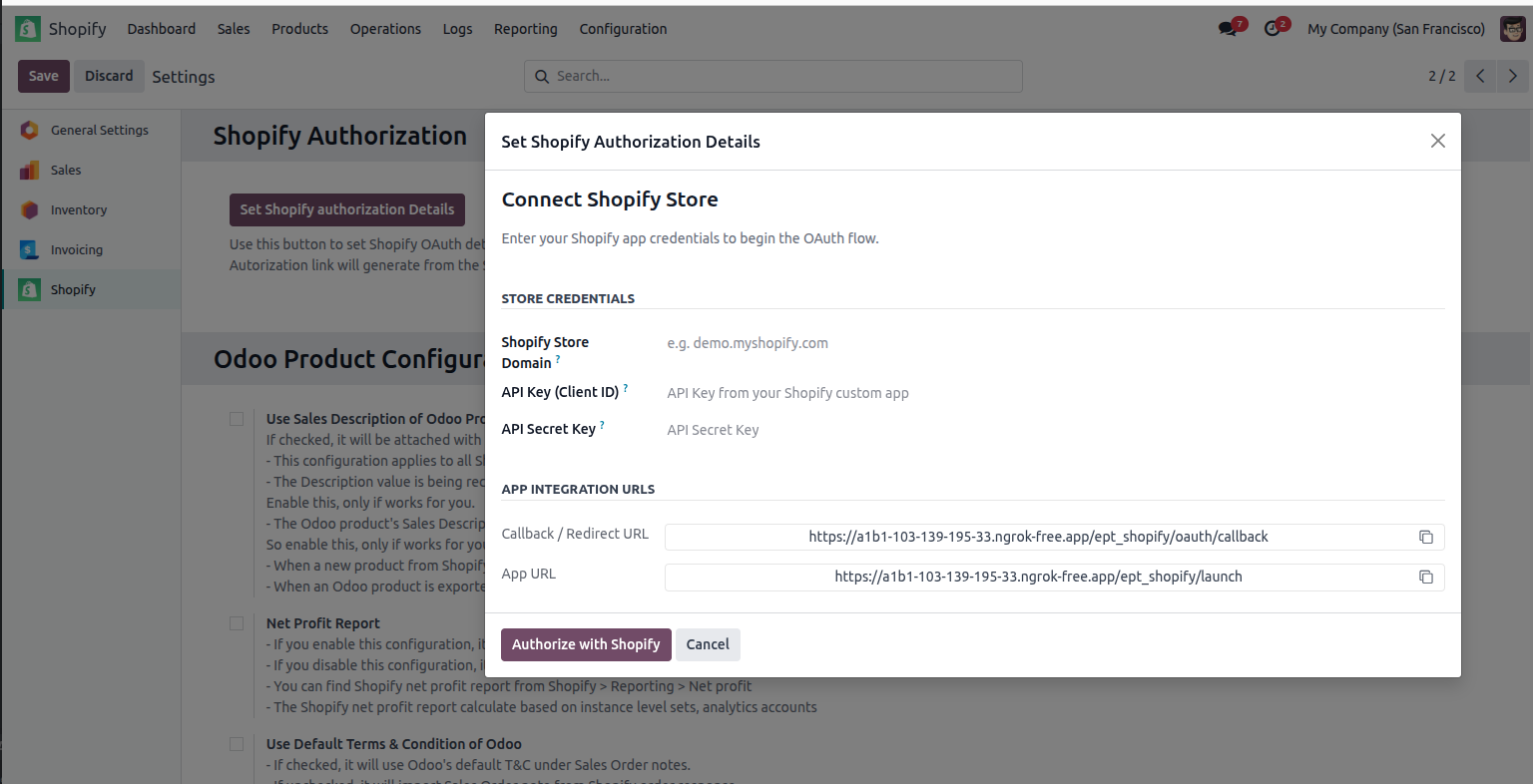
- In Odoo, go to Shopify → Configuration → Settings and click Set Shopify Authorization Details to open the wizard.
-
The wizard displays two URLs in the App Integration URLs section — the App URL and the Callback / Redirect URL.
-
Keep this window open. You will need both URLs in the next step.
2. Create a Custom App in the Shopify Developer Dashboard
If you do not have an account, create one at -> Shopify Partners.
Create the App
- Log in to the Shopify developer dashboard. Click On -> Shopify Dev Dashboard.
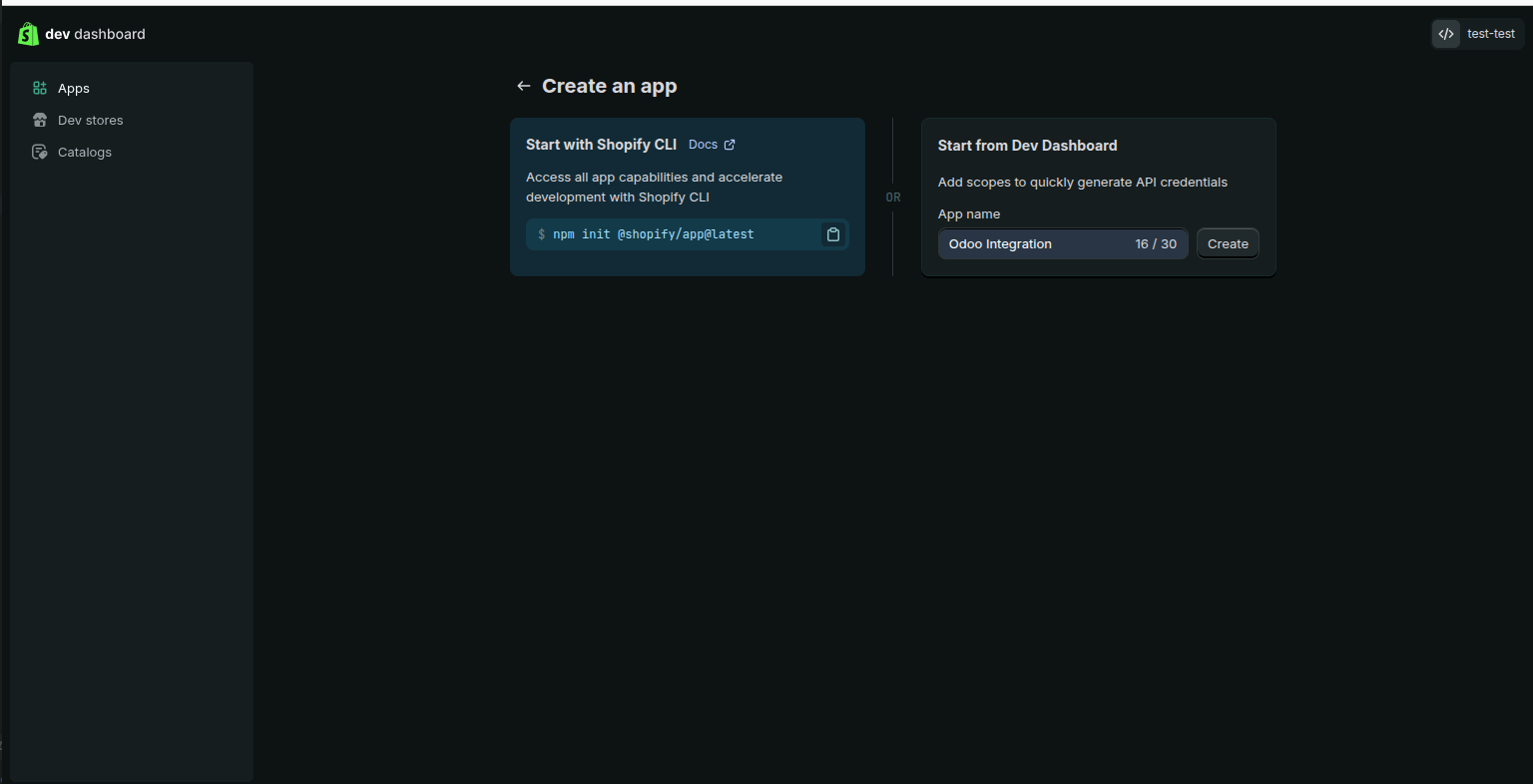
- Click Create app in the top-right corner.
-
Enter your App Name (e.g., Odoo Integration) and click Create.
Create a Version and Set URLs
- Inside the app, go to Versions and click Create version.
- In the App URL field, paste the App URL copied from the Odoo wizard.
-
In the Redirection URL(s) field, paste the Callback / Redirect URL copied from the Odoo wizard.
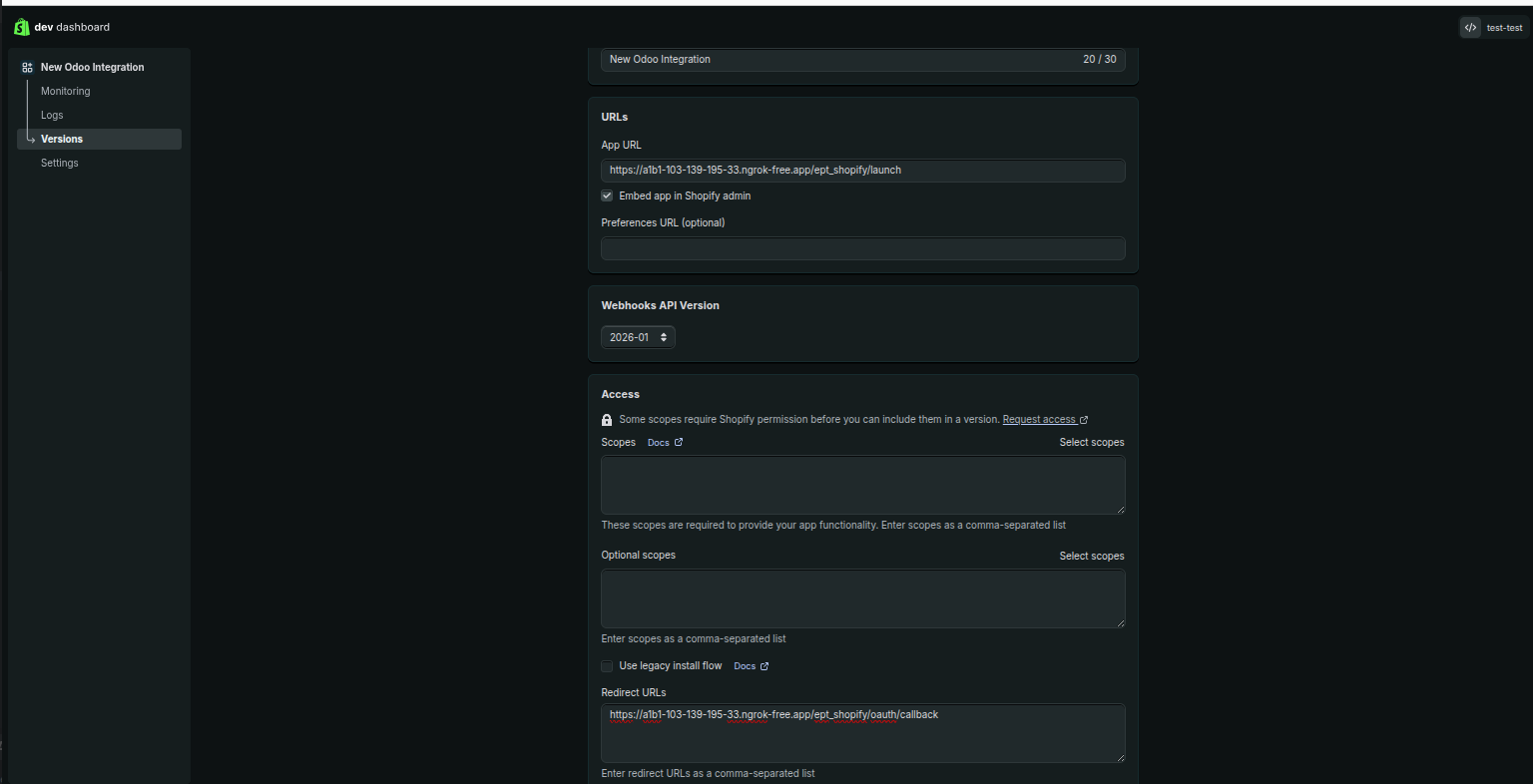
Note: Copy both URLs exactly as shown in the Odoo wizard. Any mismatch — including a trailing slash — will cause the authorization to fail.
Set API Scopes
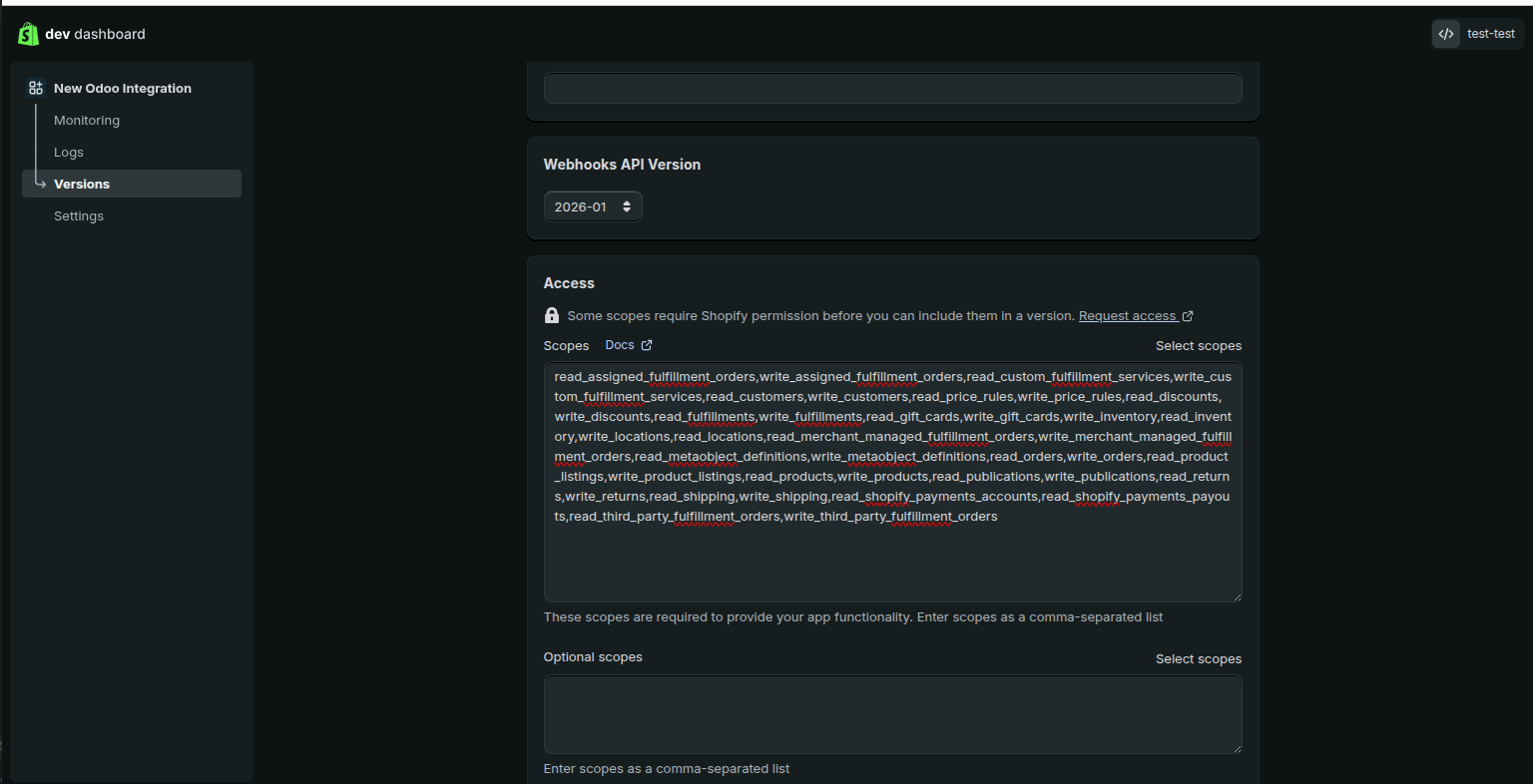
Copy the following string exactly and paste it into the Access Scopes field of your app version:
read_assigned_fulfillment_orders,write_assigned_fulfillment_orders,read_custom_fulfillment_services,write_custom_fulfillment_services,read_customers,write_customers,read_price_rules,write_price_rules,read_discounts,write_discounts,read_fulfillments,write_fulfillments,read_gift_cards,write_gift_cards,write_inventory,read_inventory,write_locations,read_locations,read_merchant_managed_fulfillment_orders,write_merchant_managed_fulfillment_orders,read_metaobject_definitions,write_metaobject_definitions,read_orders,write_orders,read_product_listings,write_product_listings,read_products,write_products,read_publications,write_publications,read_returns,write_returns,read_shipping,write_shipping,read_shopify_payments_accounts,read_shopify_payments_payouts,read_third_party_fulfillment_orders,write_third_party_fulfillment_orders,write_order_edits,read_order_edits
Note: All scopes listed above are required. The token will only work for permissions that are explicitly set on the released app version.
Release the Version
- Confirm that the App URL, Redirect URL, and all scopes are correctly entered.
- Click Release version.
Note: The app must have a released version before it can be installed in a store or used to generate a token.
3. Install the App in Your Shopify Store
Before generating the token, the app must be installed in your Shopify store.
- In the Shopify developer dashboard, open your app and go to Distribution.
- Select Distribution Method Custom Distribution.
- Enter your store domain (e.g.,
demo.myshopify.com) (Enable Allow multi-store install for one Plus organization if you want) and click Generate link. - Copy the generated link and open it in your browser.
-
Your Shopify store’s app installation page will open. Click Install.
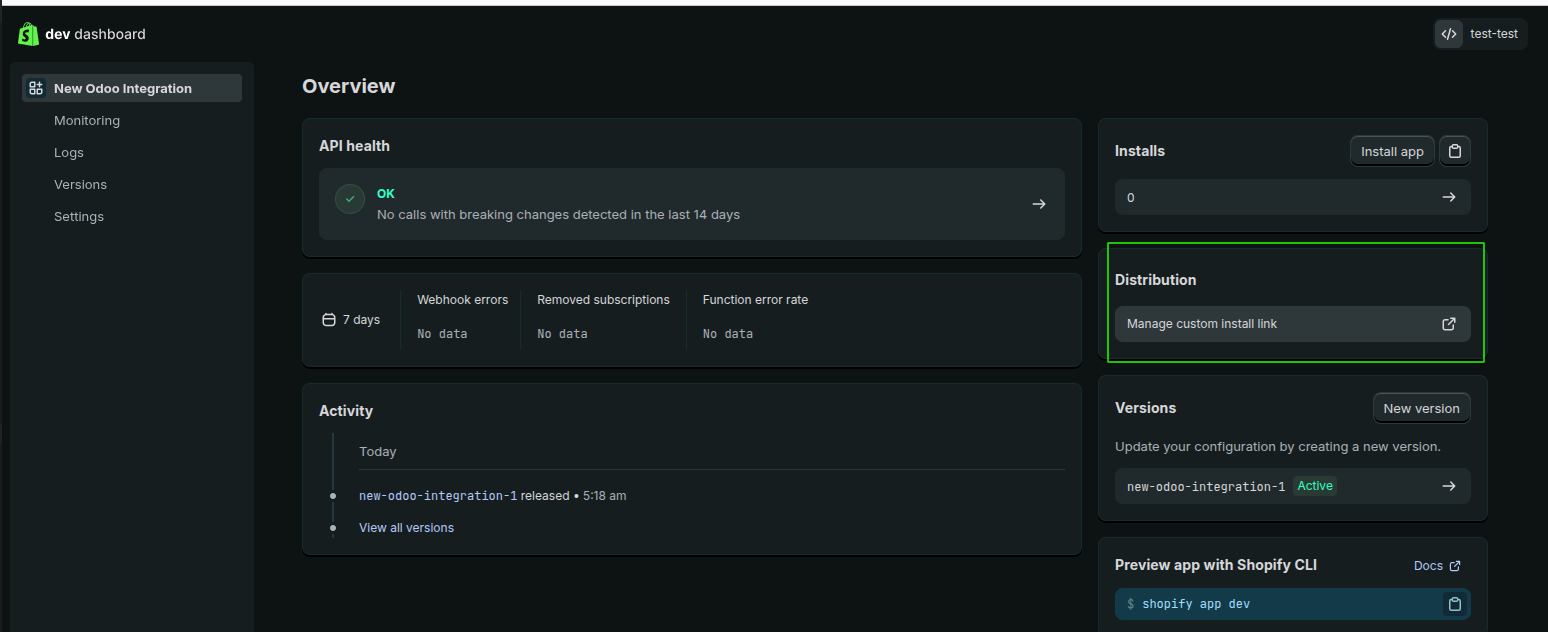
Note: Make sure you are logged in to the correct Shopify store before opening the installation link.
4. Copy Credentials into the Odoo Wizard
- In the Shopify developer dashboard, open your app and go to Settings.
- Copy the Client ID and paste it into the API Key (Client ID) field in the Odoo wizard.
- Copy the Client Secret and paste it into the API Secret Key field in the Odoo wizard.
-
Enter your store domain in the Shopify Store Domain field, e.g.,
demo.myshopify.com. Do not includehttps://.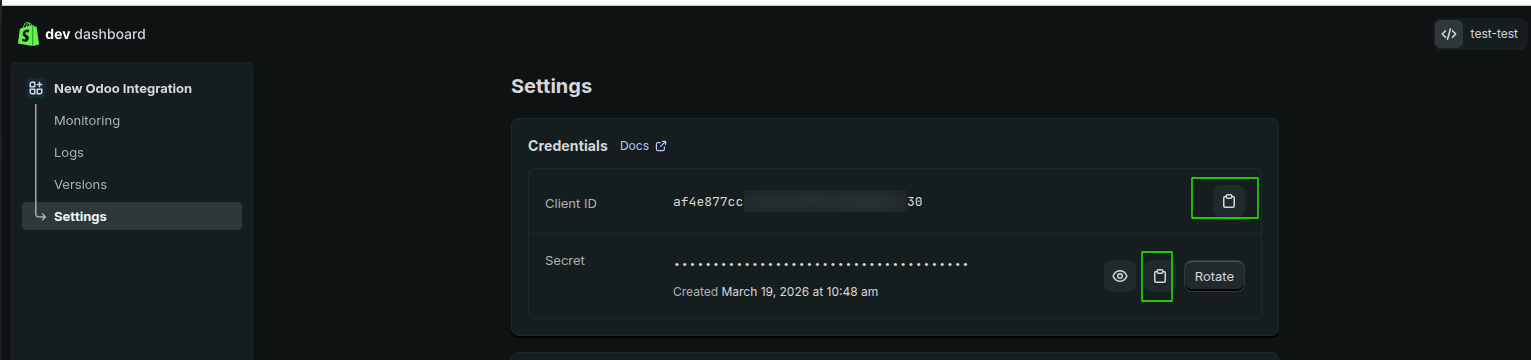
5. Authorize and Generate the Token
- Switch back to the Odoo wizard.
- Click Authorize with Shopify.
- Your browser will redirect to the Shopify authorization screen.
- You will be redirected back to Odoo automatically. If the Odoo login page appears, log in — the wizard will reopen on its own.
-
The wizard switches to the Token Generated view and displays your access token.
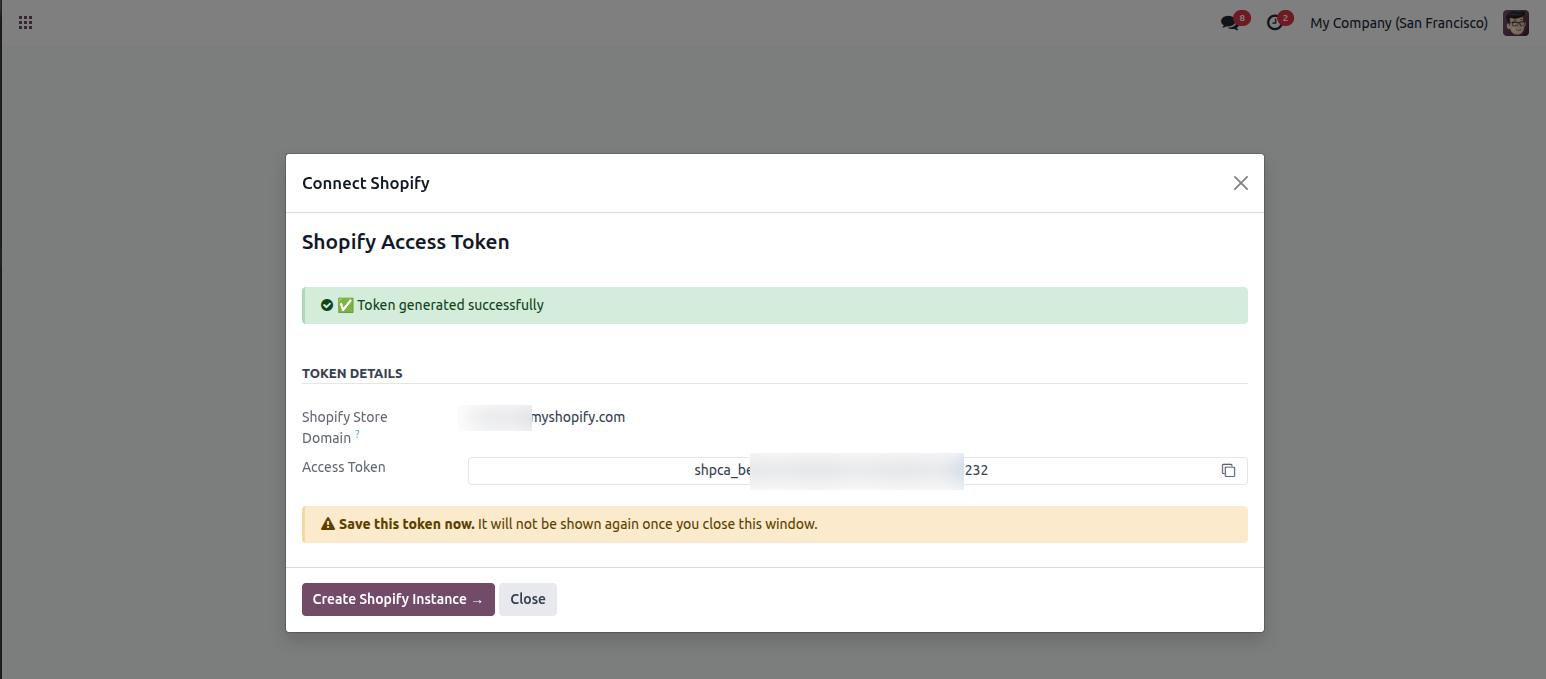
Important: Copy the access token immediately using the copy icon next to the token field. This is the only time it will be shown — once the wizard is closed, the token is cleared from storage.
6. Create the Shopify Instance
After the token is generated you have two options:
Option A — Create Instance Immediately (Recommended)
- Click Create Shopify Instance → in the wizard.
- The instance configuration wizard opens, pre-filled with your store domain, API key, shared secret, and access token.
- Enter an Instance Name and select the Company.
- Click Create to verify your credentials and complete the setup.
Option B — Save Token and Create Instance Later
- Copy the token and store it securely, e.g., in a password manager.
- Click Close to dismiss the wizard.
- When ready, go to Shopify → Configuration → Instances → New and paste the token into the Password field.
Note: For multiple stores, you must create a separate app in the Shopify developer dashboard for each store and repeat this process.