Cancle Order Management:
Cancle Order In WooCommerce from Odoo:
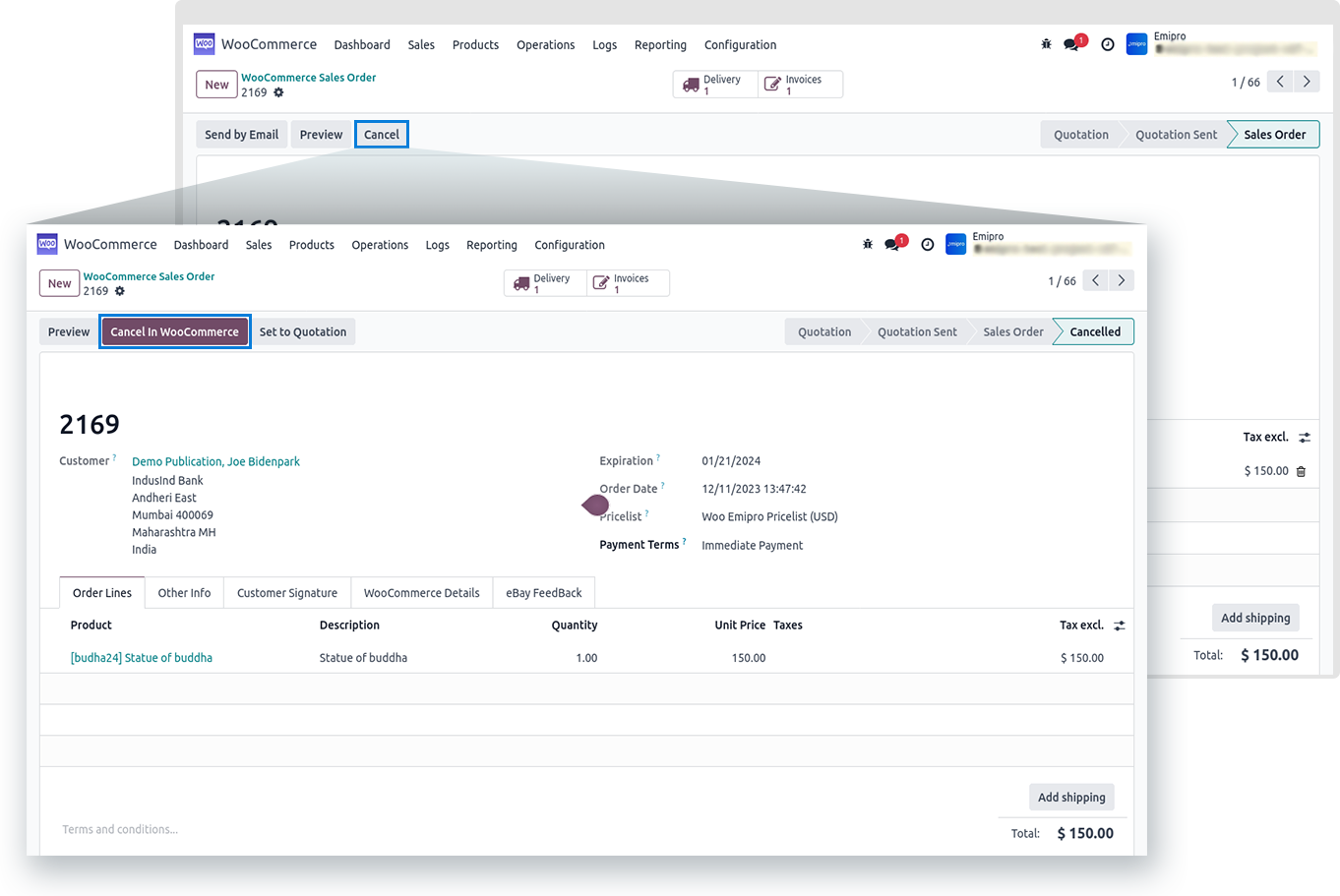
- This feature allows you to cancel an order from Odoo to the WooCommerce Store.
- Whenever you cancle an order at that time connector will provide the smart button of “Cancel IN WooComnerce”.
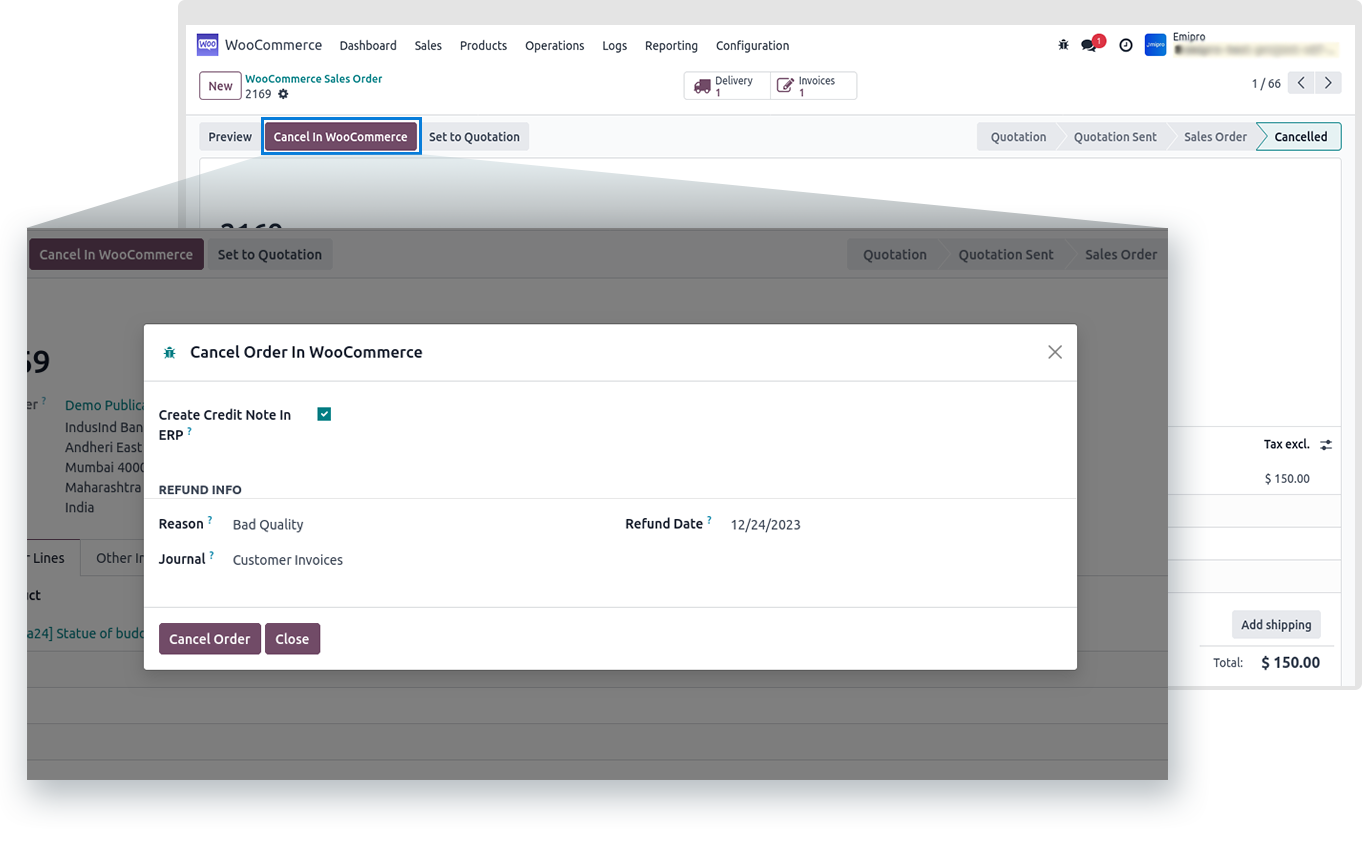
- Once you click on it, a new window will open in which there will be an options of credit note and Refund.
- If you want to create a credit note then you need to click on this check box.
- Additionally you need to add an appropriate Reason and Journal in it.
- Click on the cancle order and the order gets cancelled at Woo Commerce store too.
Import Cancel Order Manually:
- Our connector imports cancle orders from the Wc store by performing an operation of “Import Cancle Order”.
- Order should be available in a quotation stage or delivery order is not delivered yet.
- Otherwise the system creates a log note in the Message section.
- In order import the Cancle order manually, navigate to Woo commerce app » Operations » Select an instance » Select the operation of an Inport Cancle Order.
- Add the time duration as per your requirement.
- System will not create an order queue for the cancle order.
- It will direct process on the order.
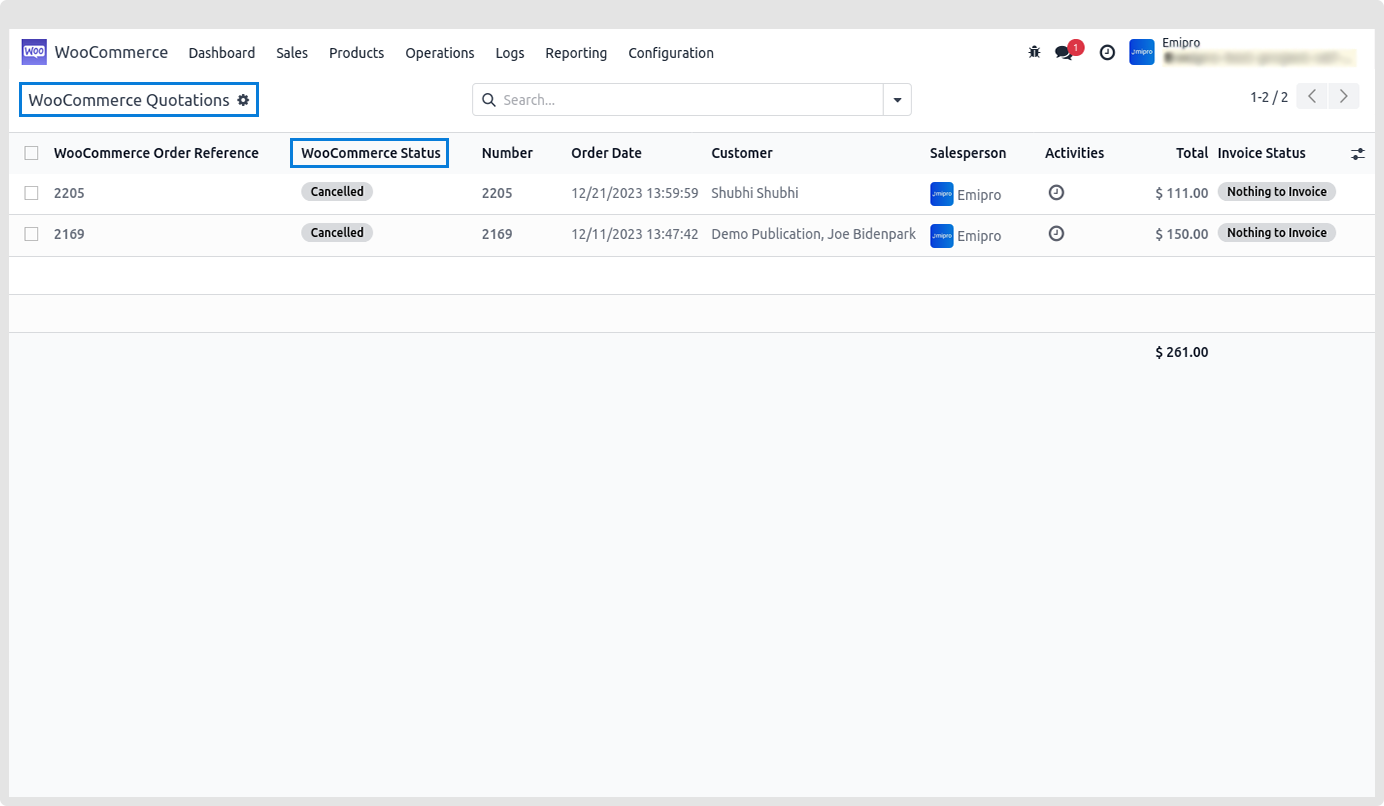
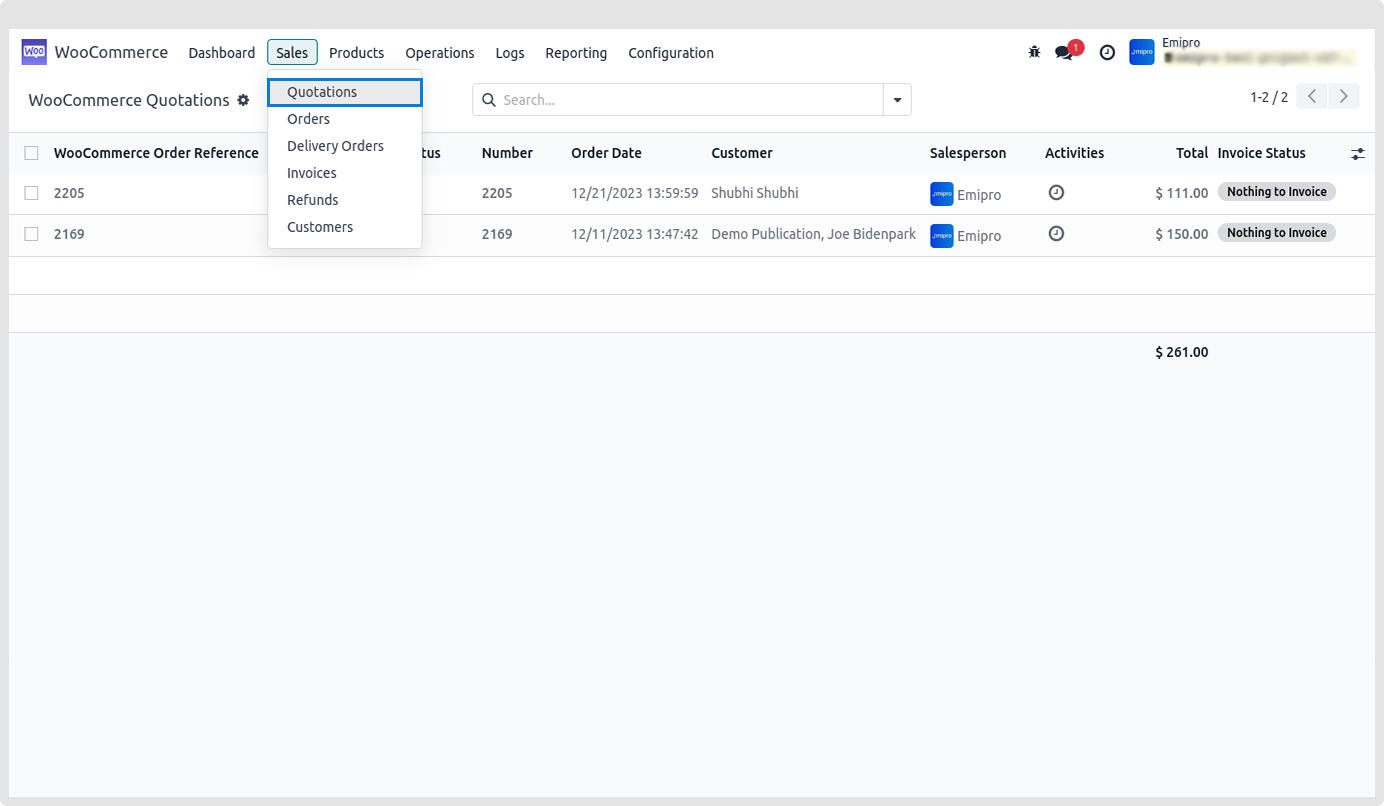
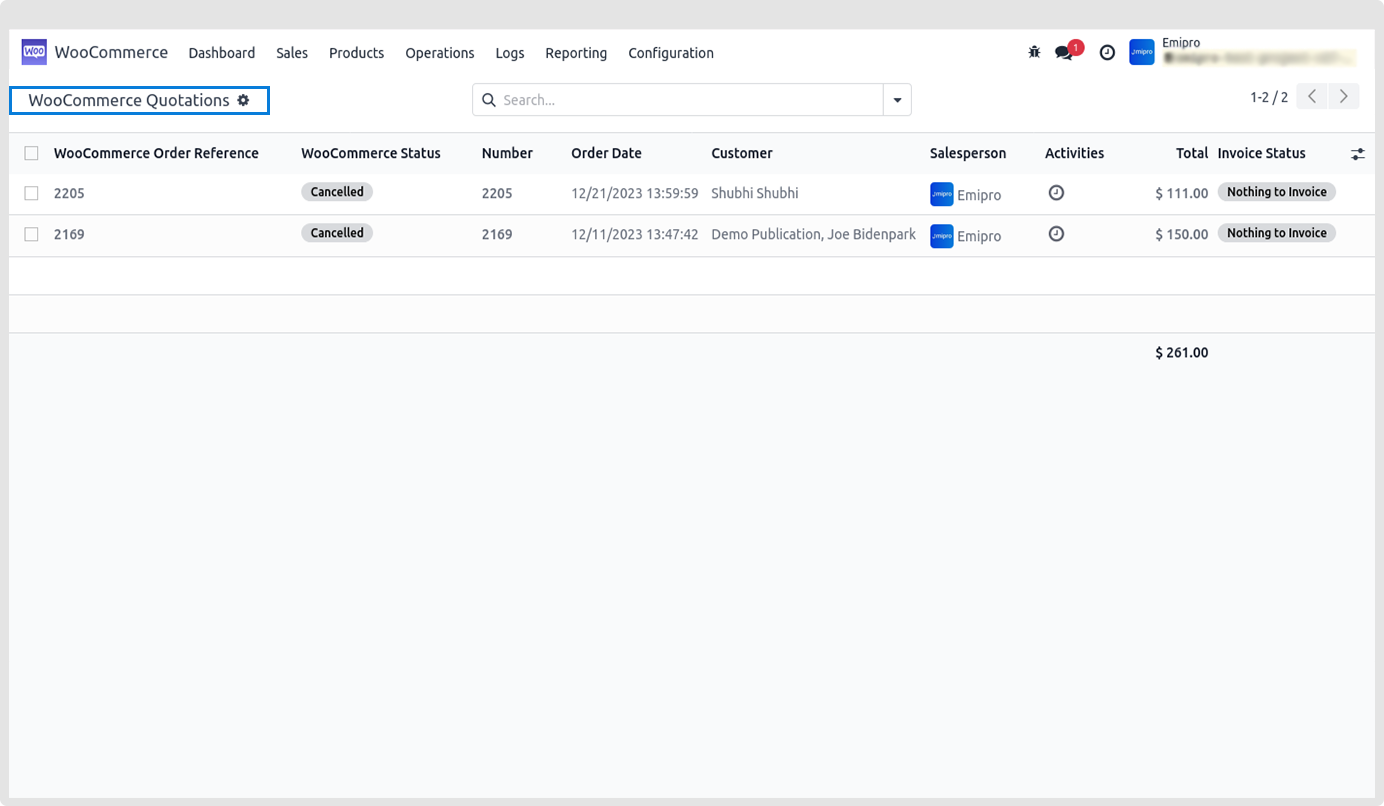
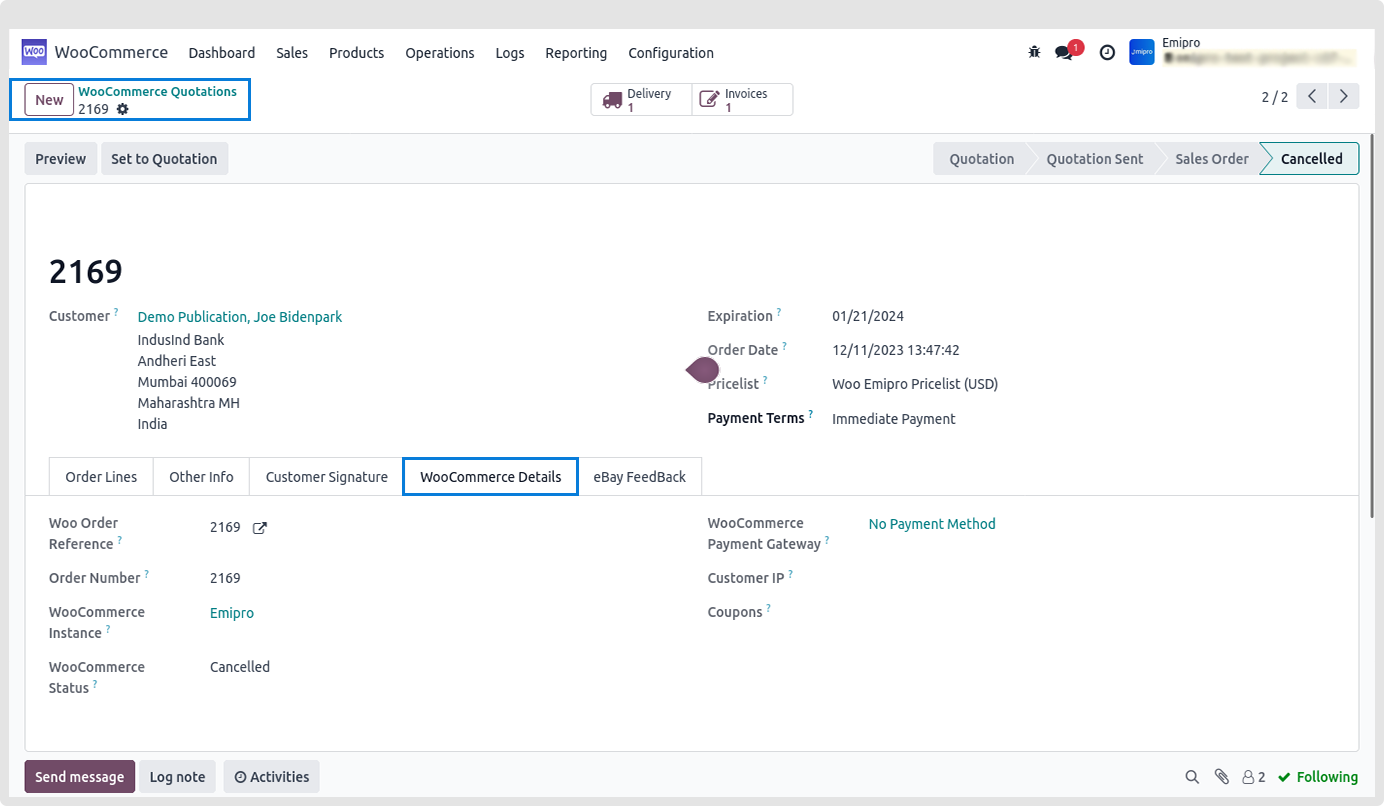
- After successfully importing the cancle orders, this orders are available in Woo Commerce app » Sales » Quotation.
Import Cancel Order via Scheduler:
To Import Cancel Order using Scheduler follow the below mentioned navigation Woo commerce app » Congratulations » Instance
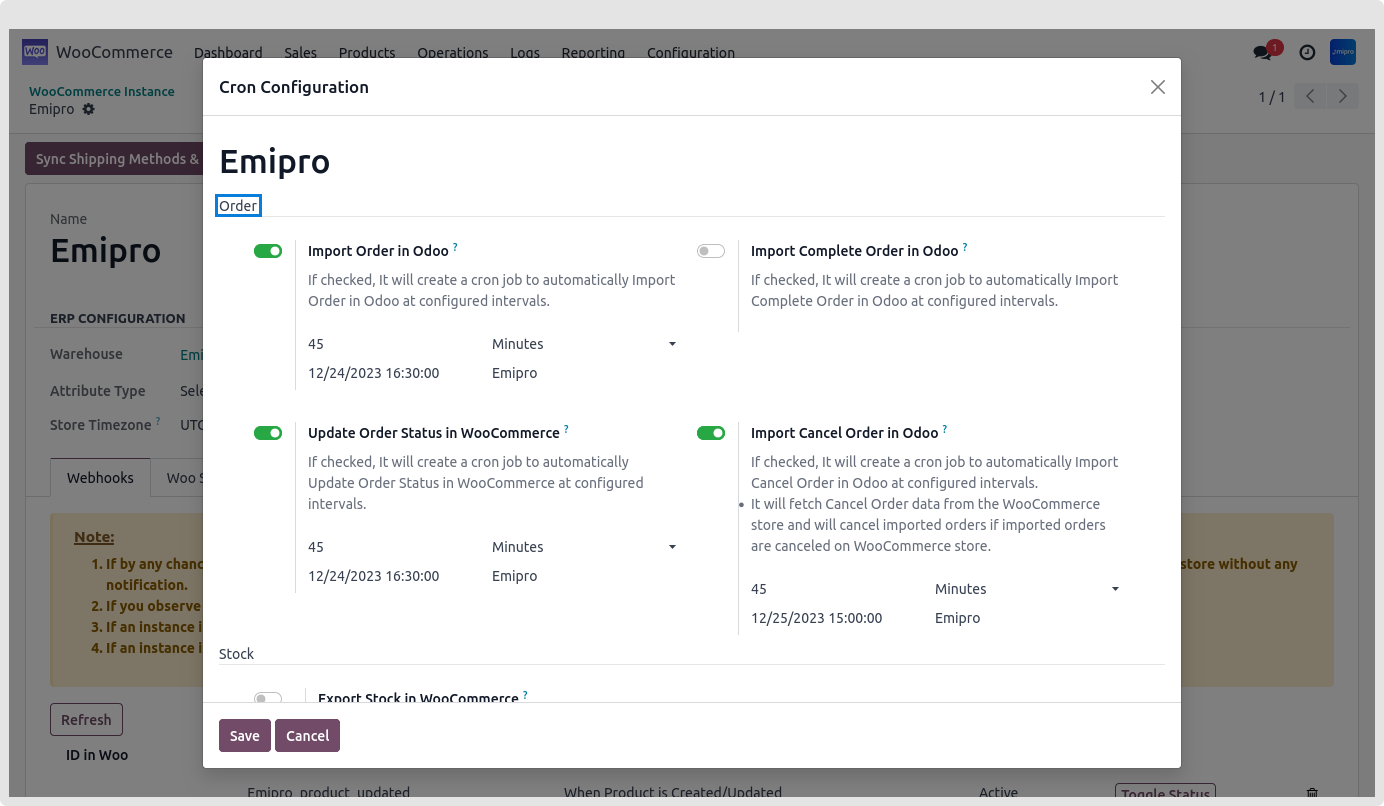
You need to select the instance and click on Configure Schedulers and activate Cancel Order in Odoo.
User can configure many schedulers to set automated jobs to perform the various tasks. It is necessary to set the below mentioned values
Time: You can set the interval in different time duratio, which means scheduler will run after a selected time interval.
Note: It is a advisable to minimum set 45 Minutes in order to avoid the conflict.
Execution date and time:
Here you can set the execution date and time from when the scheduler will start.
User: You have to select the user through which you want the task to be carried out. Make sure that the user selected for this task should possess the rights for the same.
Import Cancle Orders via Webhooks:
-
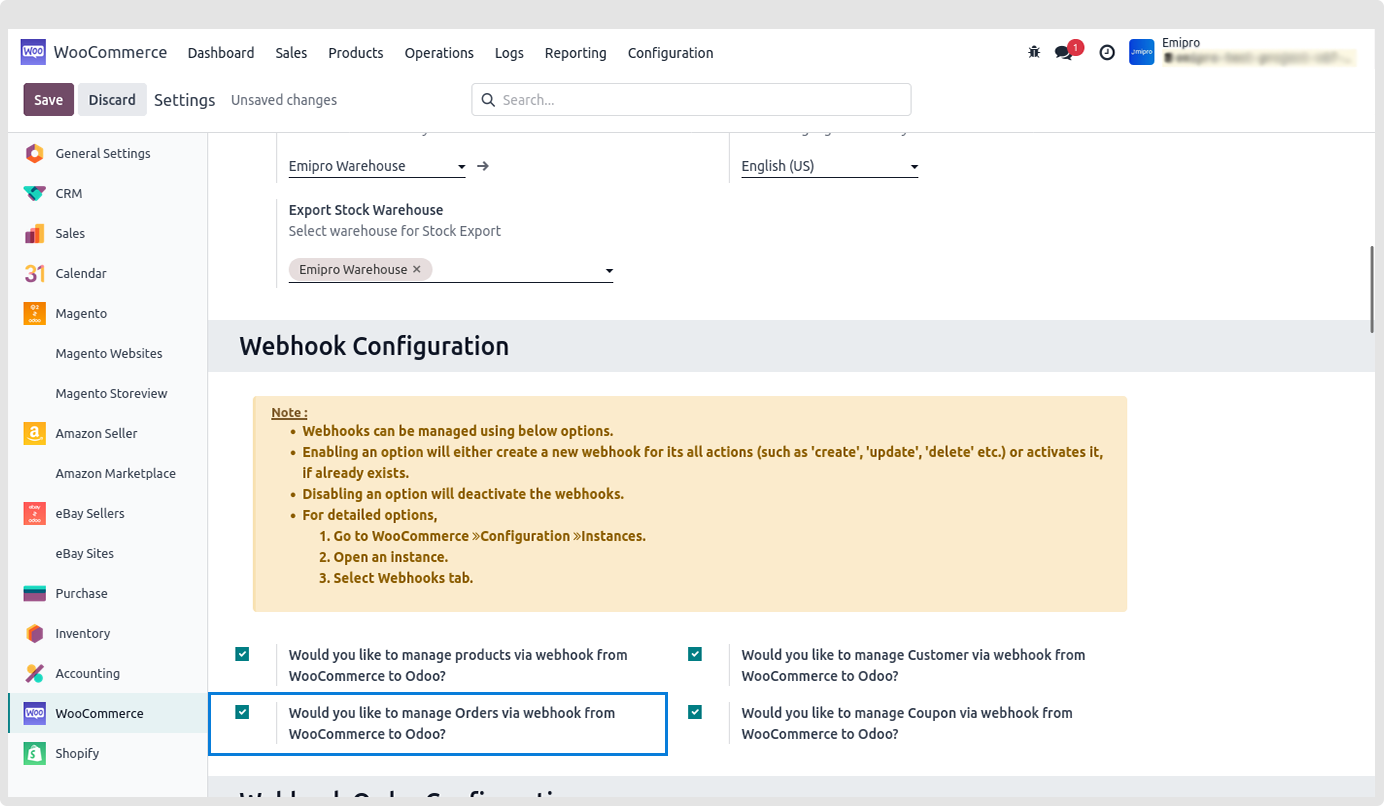
You can import the Cancel Order via Web-hooks by navigating to, Woo commerce app » Congratulations » Web-hooks Section.
-
We need to activate manage order via Web-hooks.
Note:
-
When importing the orders from Web-hooks, it only import the orders which are been placed from Woocommerce website and not from the Admin panel.
-
Woocommerce doesn’t allow you to cancel partial orders and select any one.