Import the Unshipped Orders
We can import an Unshipped Orders by three ways.
- Manually
- Automatically (Scheduler)
- In a real time (Web-hooks)
Import an Unshipped Orders Manually
- If you want to import the orders manually, navigate to Woo commerce app > Operation > Select an instance > Select the operation of Import Unshipped Orders.
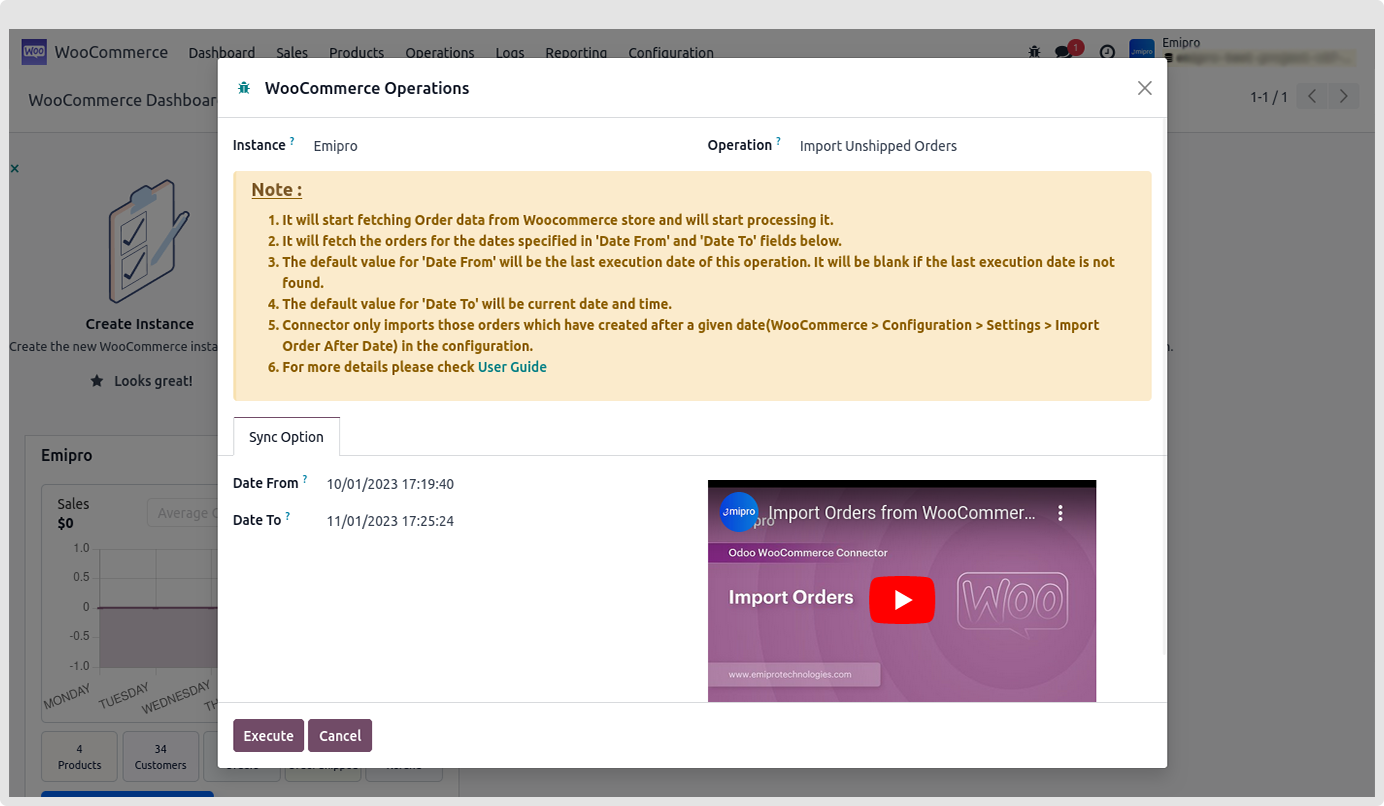
- You can select the date and time as per your requirement and click on the execute button.
Queue Dashboardy
-
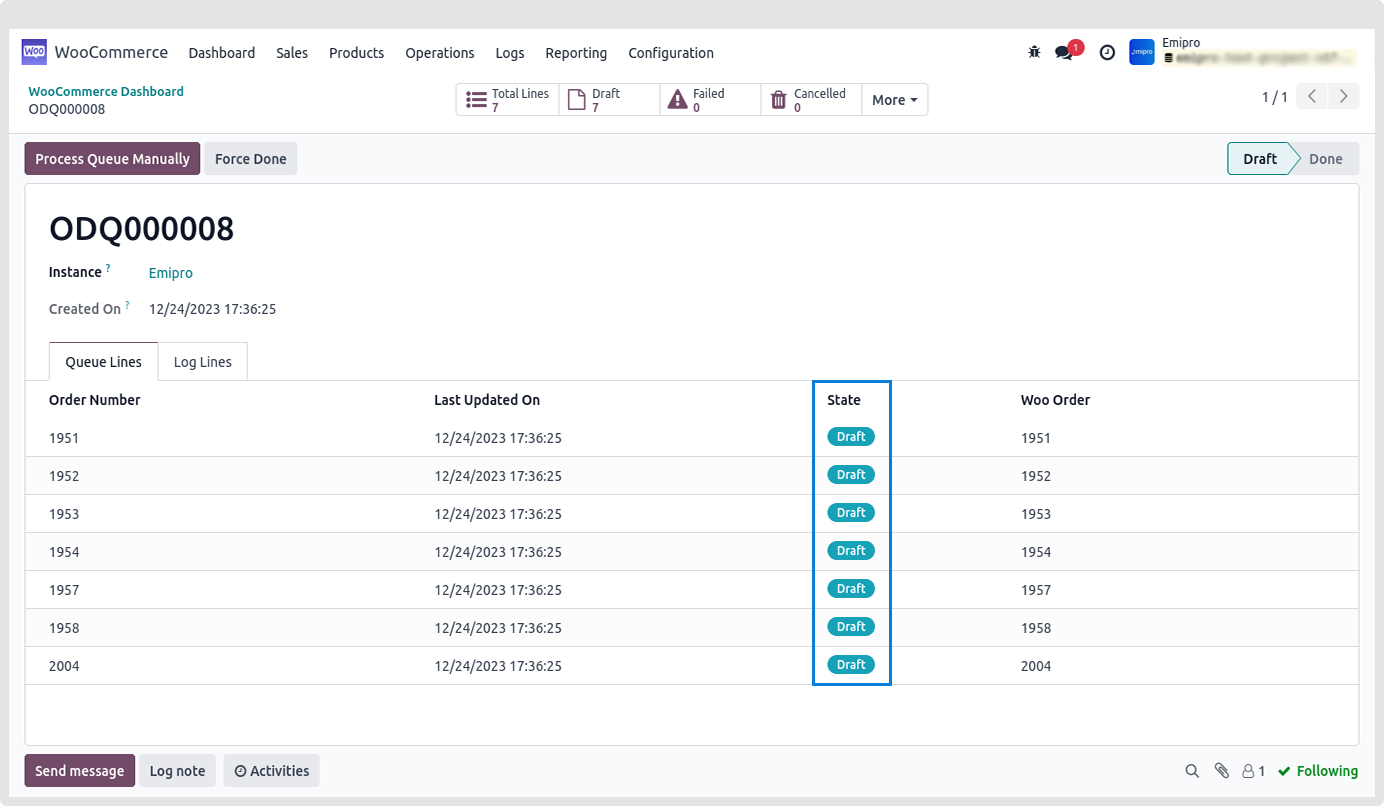
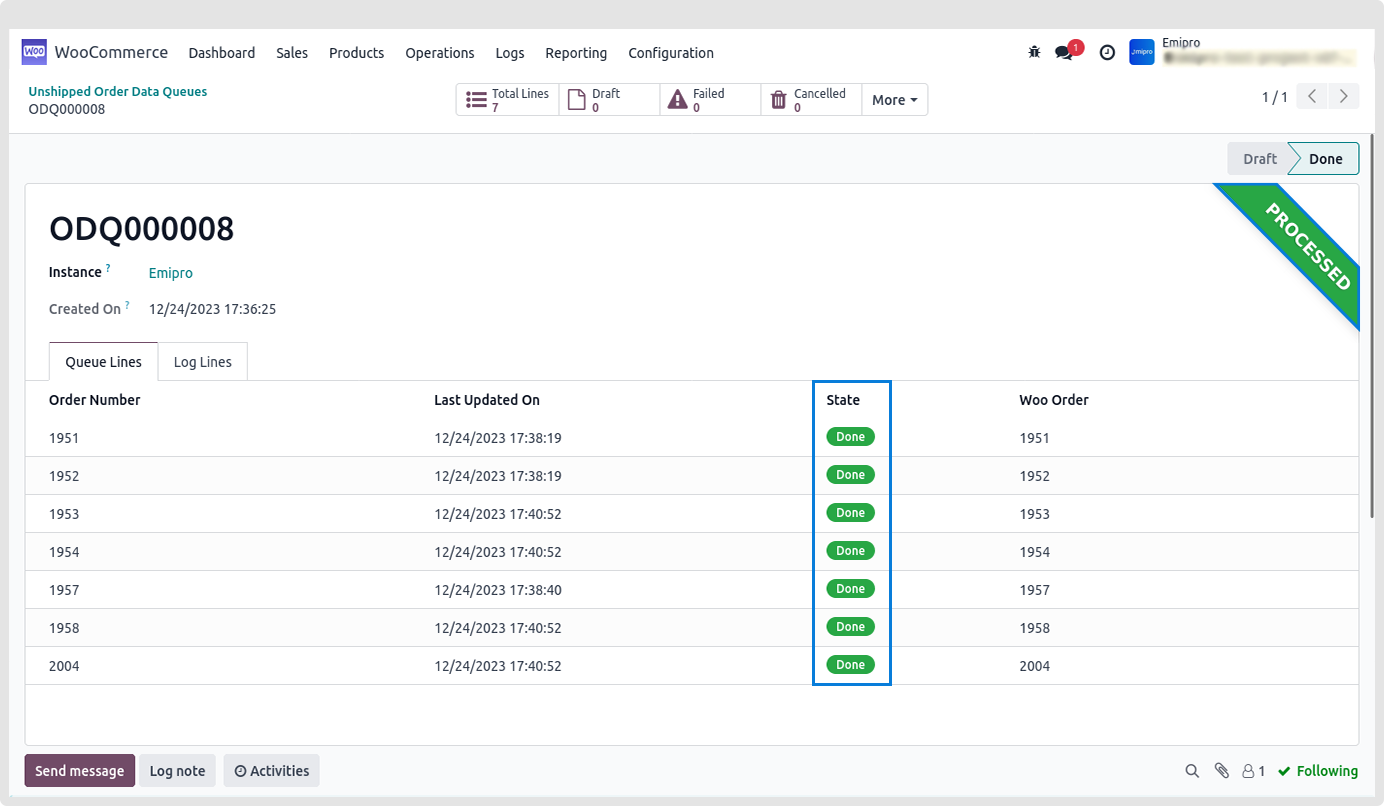
After performing an operation the system will create a queue in the Unshipped order data queue.
-
This queue will be in a draft status, we need to process it.
-
For that we need to click on process queue manually and you can wait for while to process it if you set any scheduled action to process the queue.
-
If the queues are in a Done status then all the orders are successfully imported in the odoo.
-
If the queues are in a Partially Processed or in a Faild status then check the log lines and again process it.
-
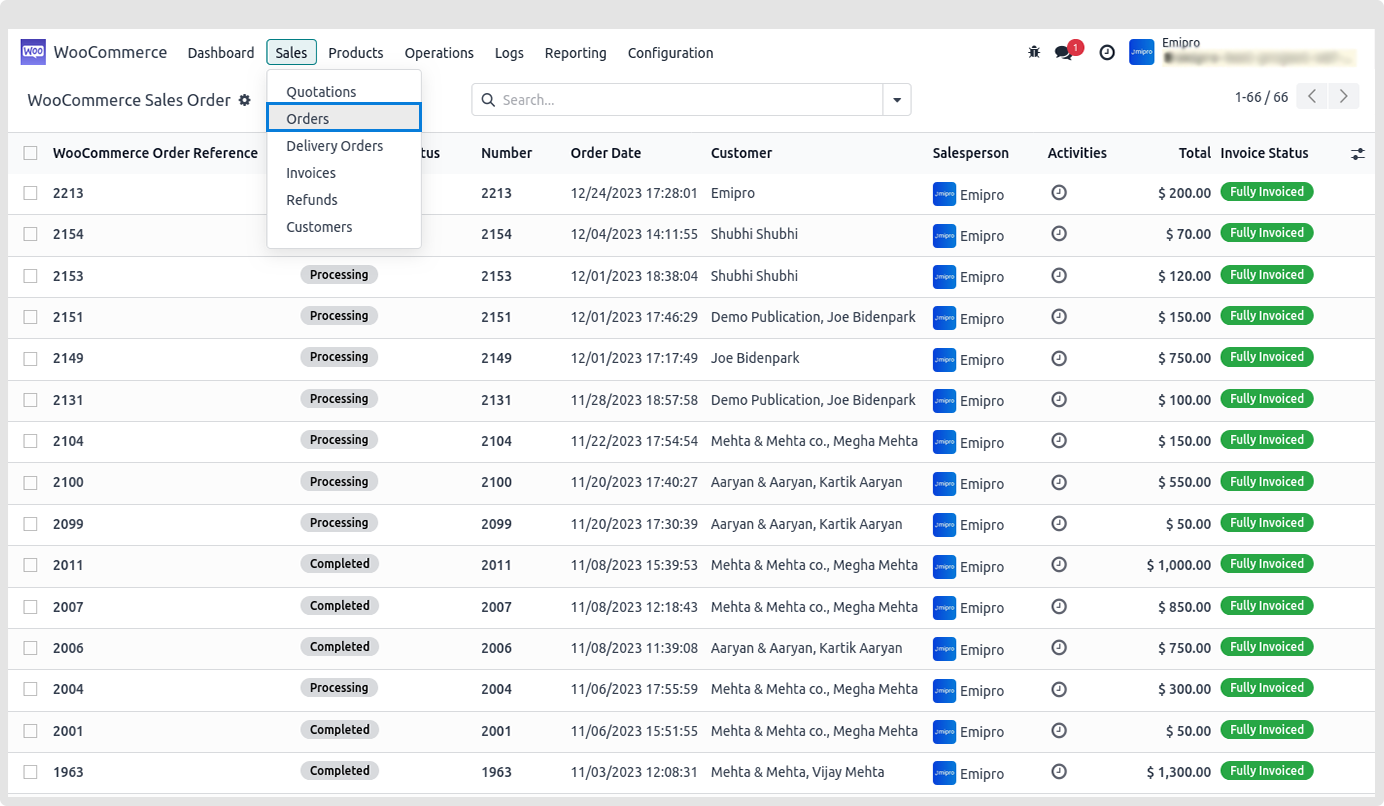
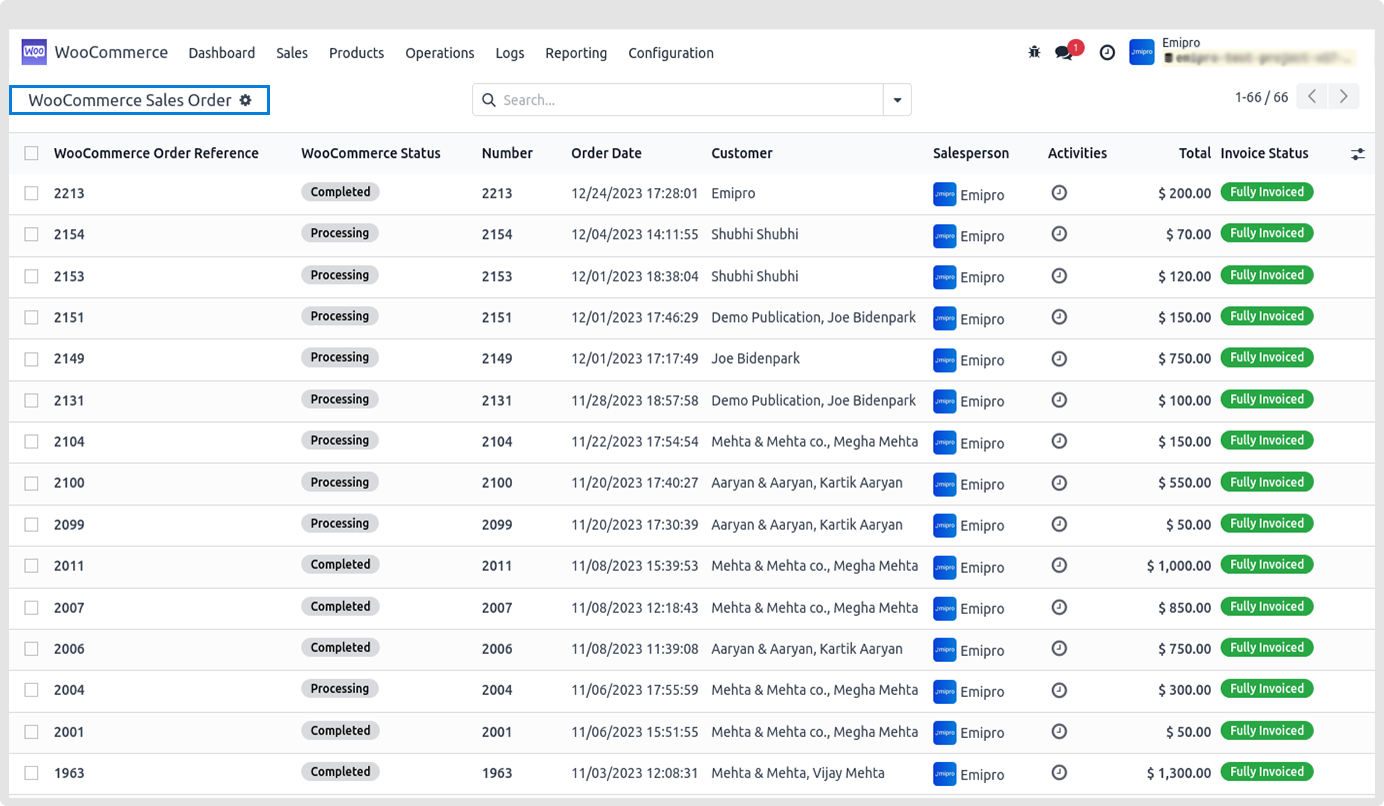
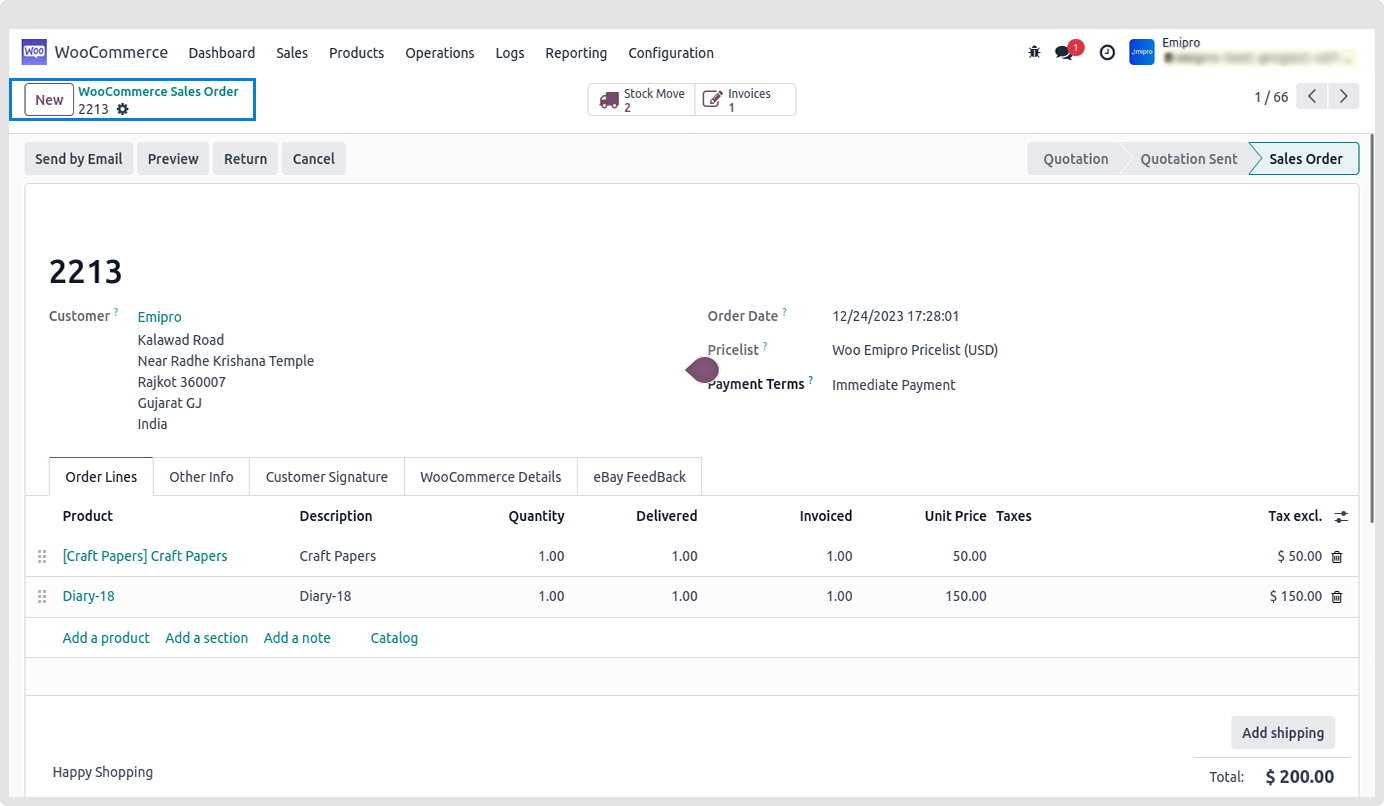
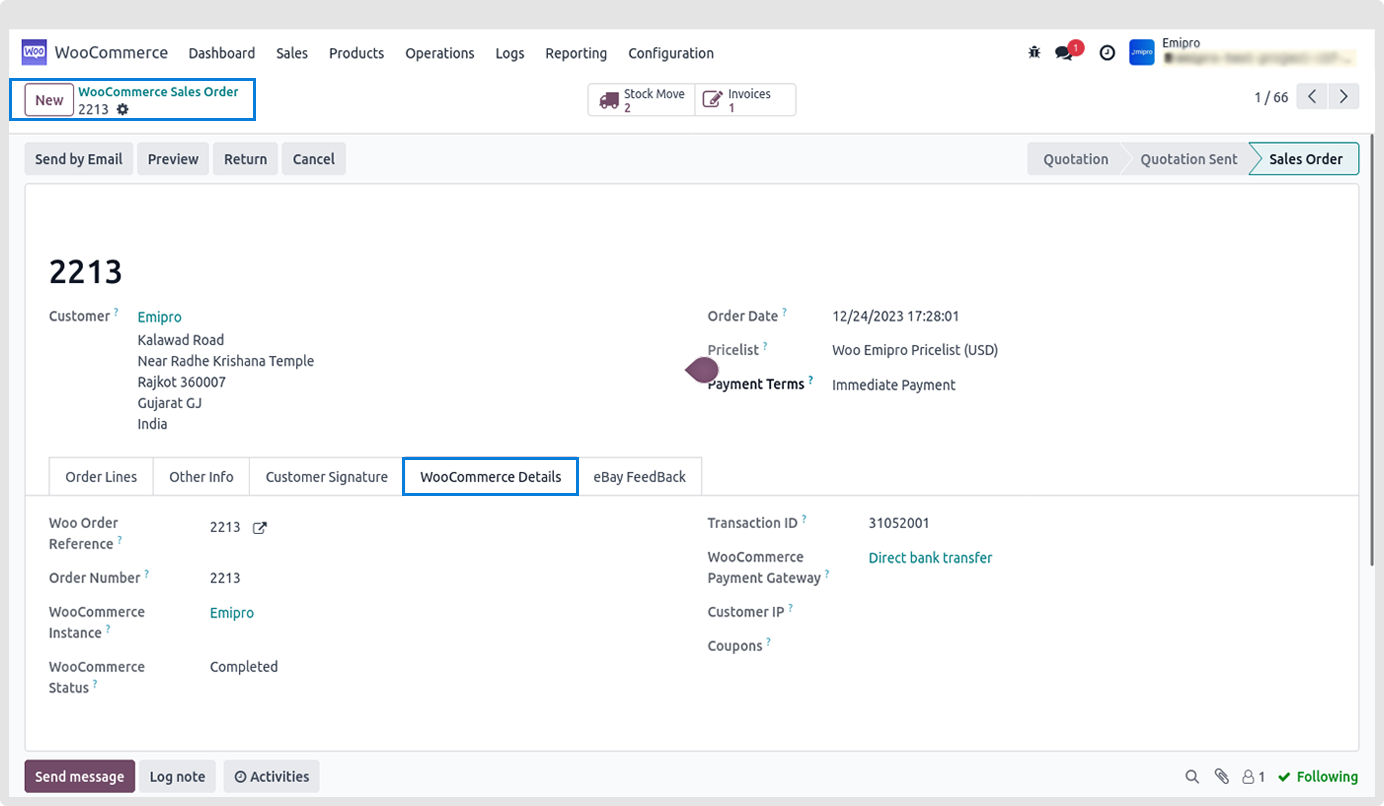
You can find all the orders, by navigating into
Woo Commerce Connector » Sales » Orders
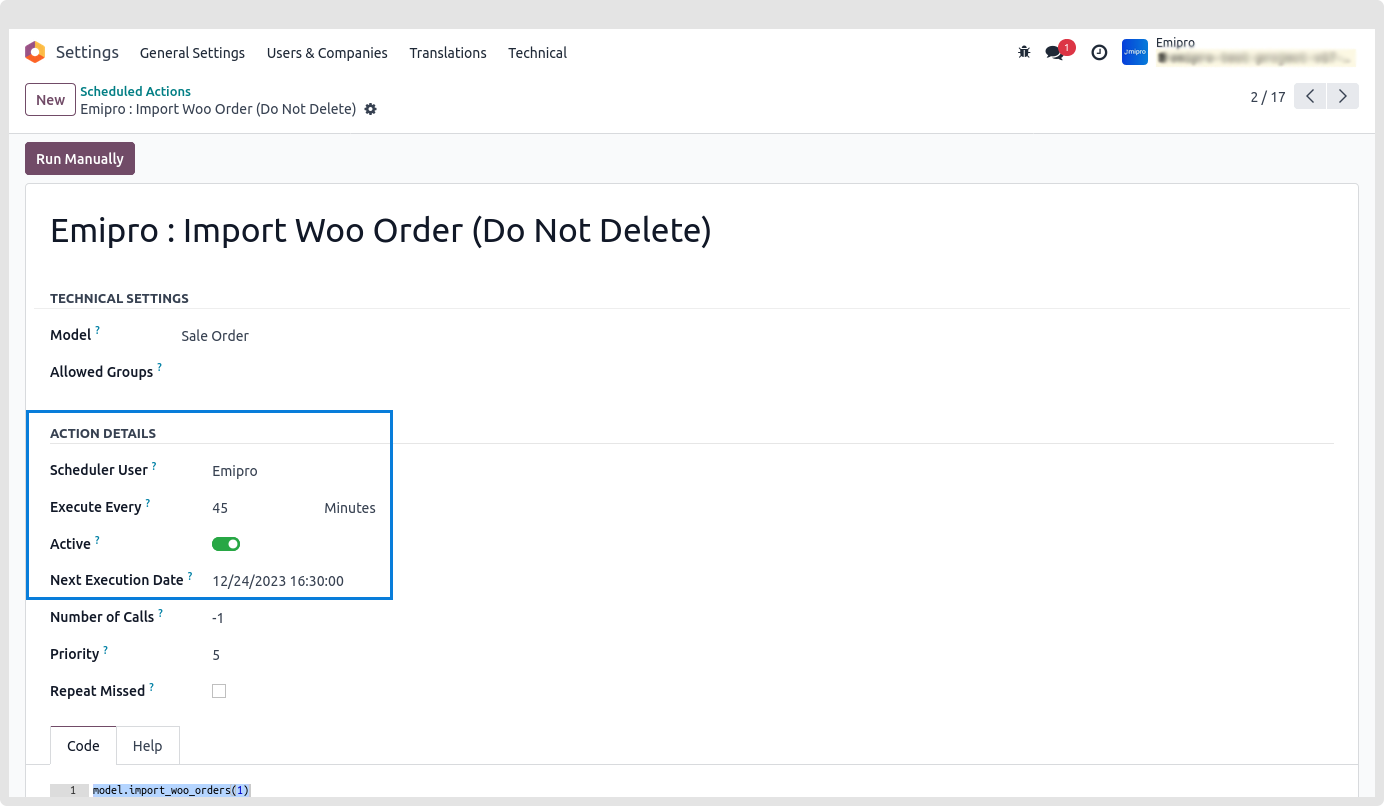
Import Unshipped Orders via Scheduler
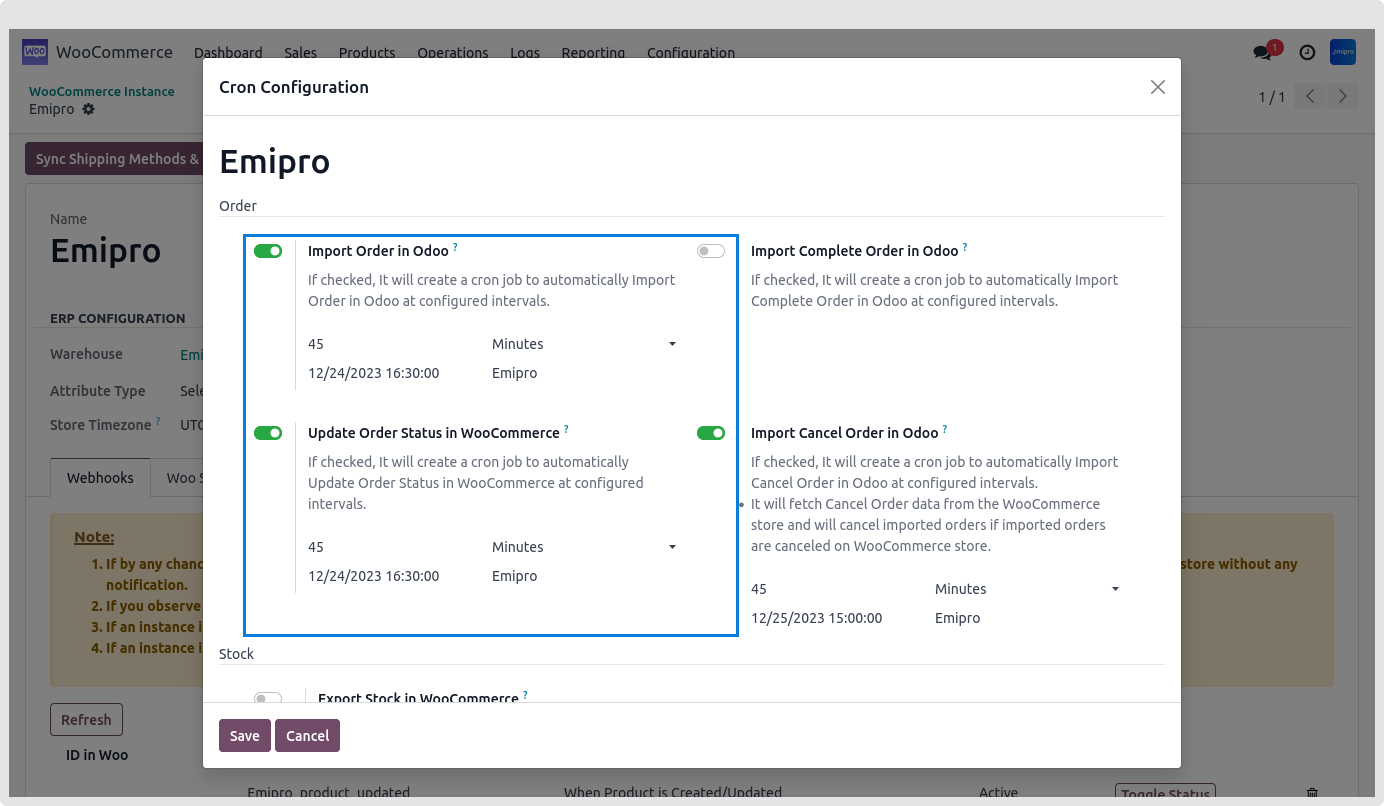
- To Import Unshipped Orders using Scheduler follow the below mentioned navigation Woo commerce app » Congratulations » Instance
-
You need to select the instance and click on Configure Schedulers and activate Import Orders in Odoo.
-
You need to set the scheduler for Importing the orders and Update order status.
-
User can configure many schedulers to set automated jobs to perform the various tasks. It is necessary to set the below mentioned values
-
Time: You can set the interval in different time duratio, which means scheduler will run after a selected time interval.
Note: It is a advisable to minimum set 45 Minutes in order to avoid the conflict.
-
Execution date and time:
Here you can set the execution date and time from when the scheduler will start.
-
User: You have to select the user through which you want the task to be carried out. Make sure that the user selected for this task should possess the rigjts for the same.
Import Unshipped Orders via Web-hooks
-
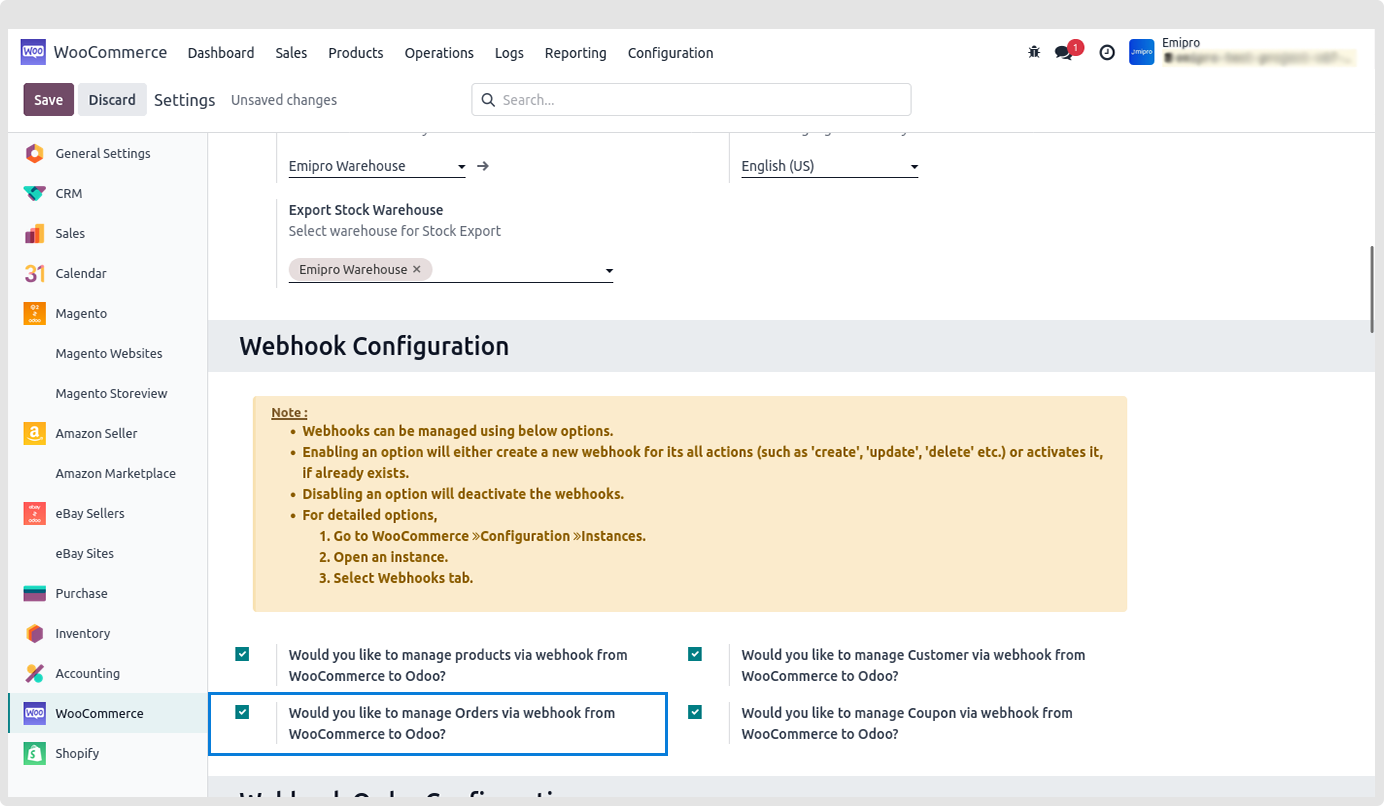
You can import Unshipped Orders via web-hooks by navigating to Woo commerce app » Congratulations » Web-hook congratulations section.
-
You need to activate Manage Orders via Web-hooks.
-
Any order Placed/Created at store will imported in a connector.
Note:
-
When importing the orders via Web-hooks, it only imports the orders which are been palced from Woo Commerce Website and not from Woo Commerce Admin Panel.
-
If the product route is Buy or MTO then system will manage this order in below mentioned manner:
-
Upon importing unshipped orders, the system will first reserve the available quantity and if that is nkt available, it will create a purchase quotation to the vendor.
Scheduled Actions Congratulations
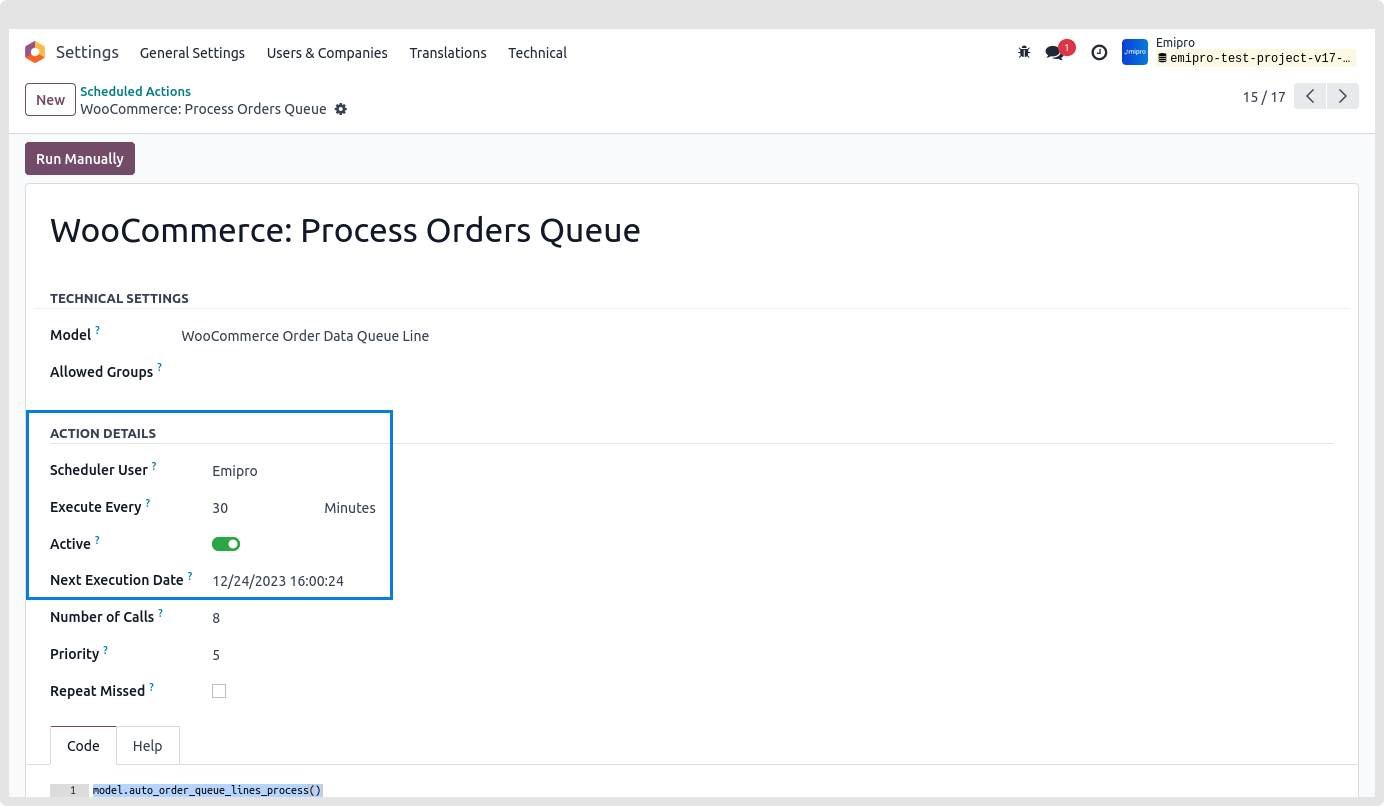
- In any case whenever the queue is generated it is necessary to process it.
- To automatically pricess the queue you can follow this navigation Main Dashboard of odoo » Write Scheduled Actions » Click on Process Order queue and activate it.