Scheduler
Scheduler is a cron job, which pull the orders and stock from Woo Commerce Store to Odoo Woo Commerce Connector. So here we have two major cron job. Scheduler for Orders and Stock.
Scheduler for Orders
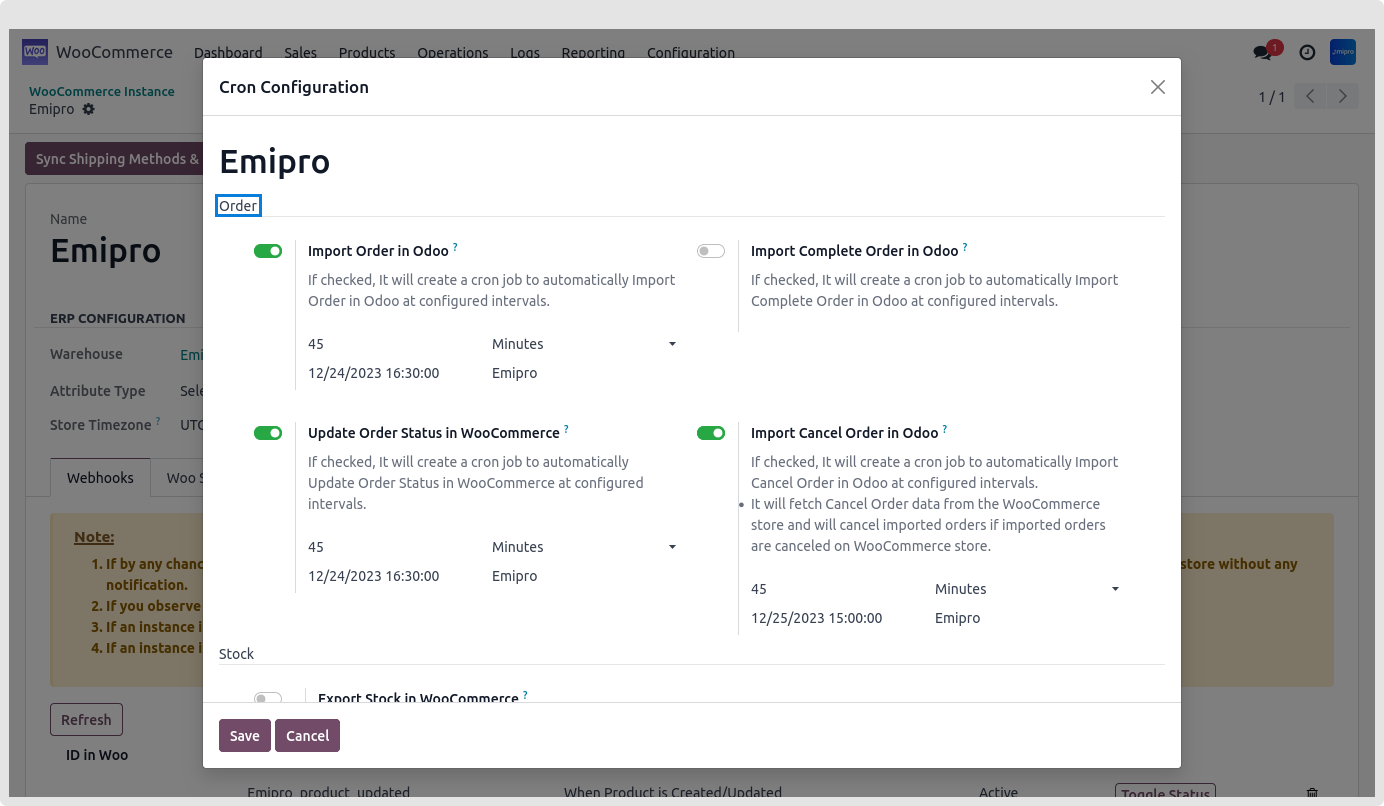
It contains four options such as:
Import Order Update Order Status in WooCommerce Import Complete order in odoo Import cancel order in odoo
Scheduled Actions
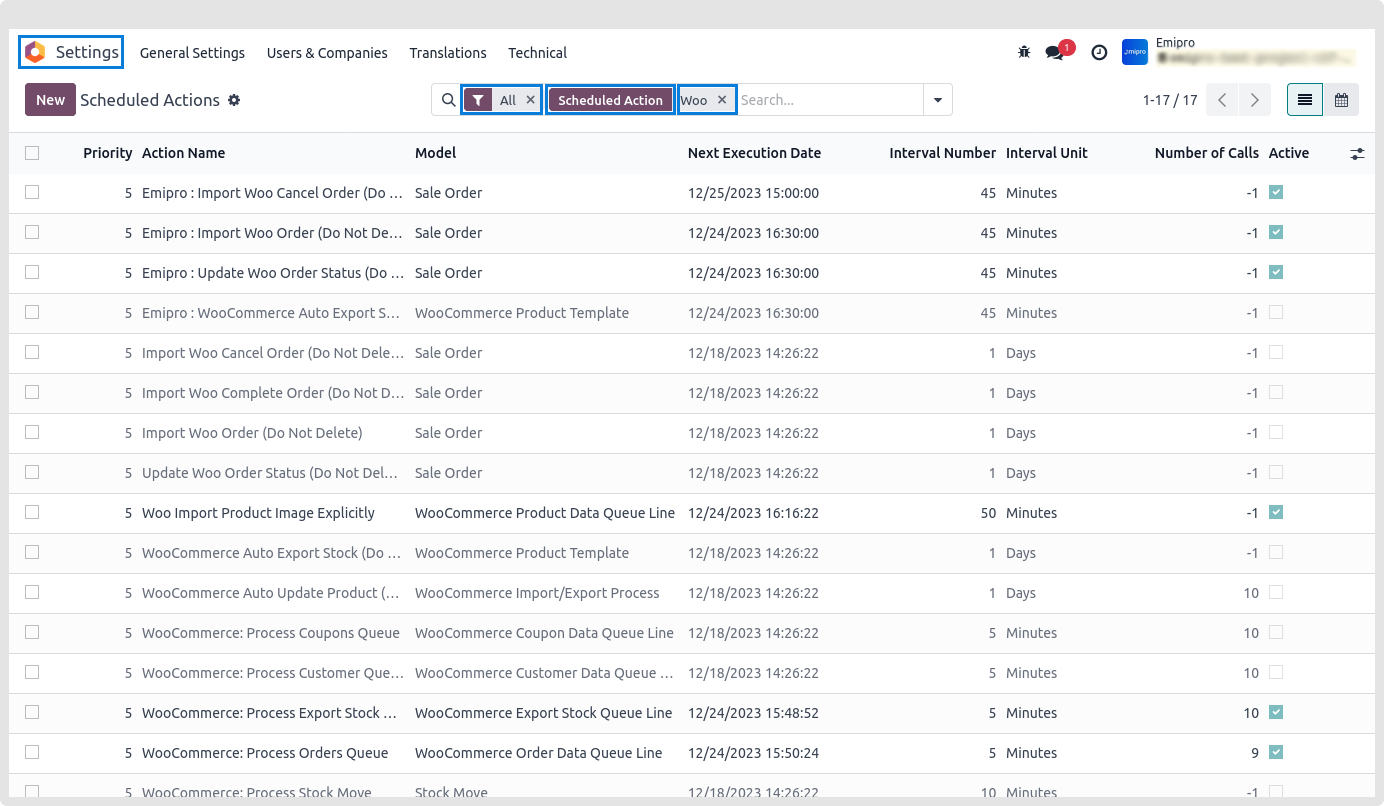
Scheduler will import the orders and Export the Stock in form of the queue. It is necessary to process this queues, in order to automatically process this queues you can set teh scheduled actions for import orders and export stock.
Import Order
Import Order scheduler will import orders from the Woo Commerce Store to Odoo Woo Commerce Connector. Import ordesr in Odoo will import an Unshipped Orders. Import Complete order in Odoo will import the Shipped Orders from Woo Commerce Store to Odoo Woo Commerce Connector.
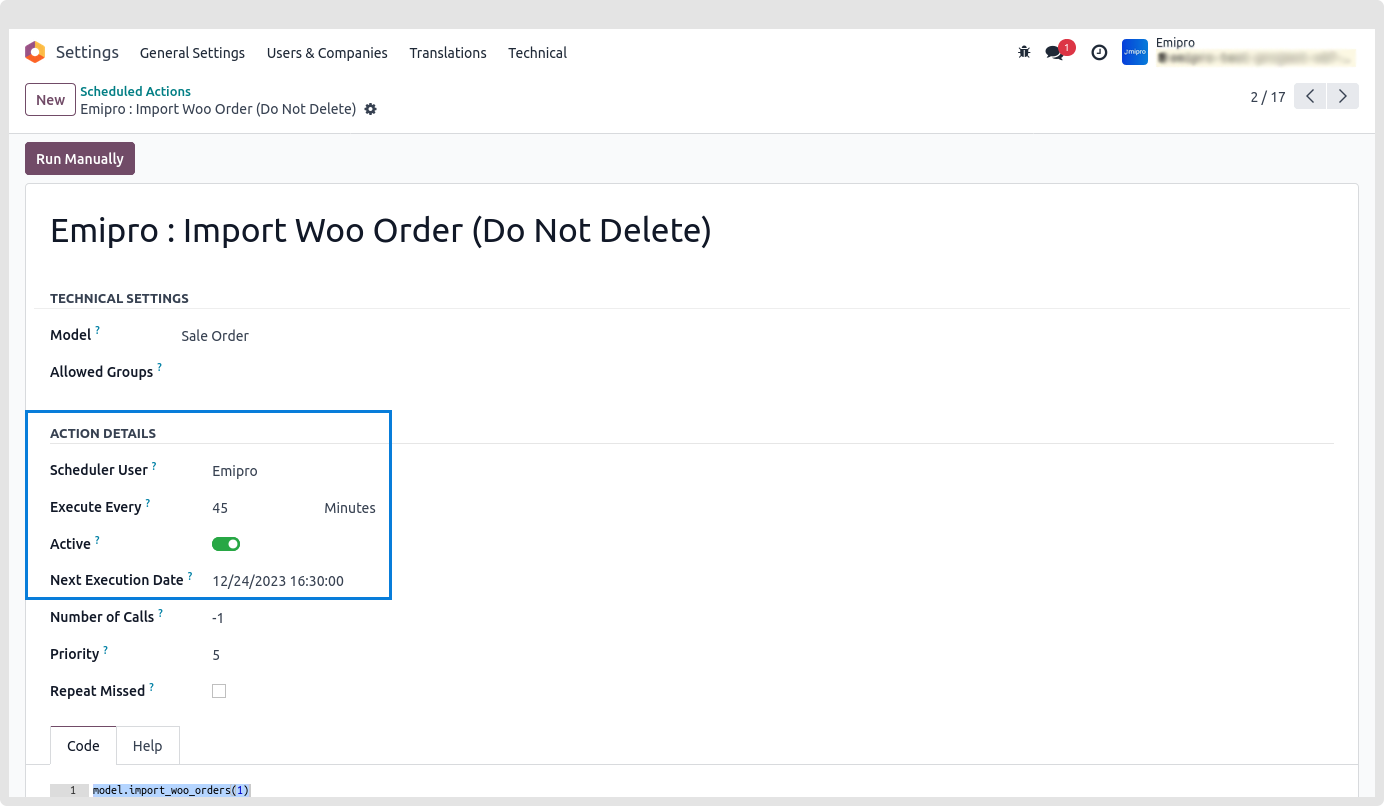
Scheduler will pull the orders and create the queues for that. So in order to process the queue automatically you can set below mentioned scheduled action. BY setting up the scheduled actions, it will automatically pull all the orders from Woo Commerce Store to Odoo Woo Commerce Connector.
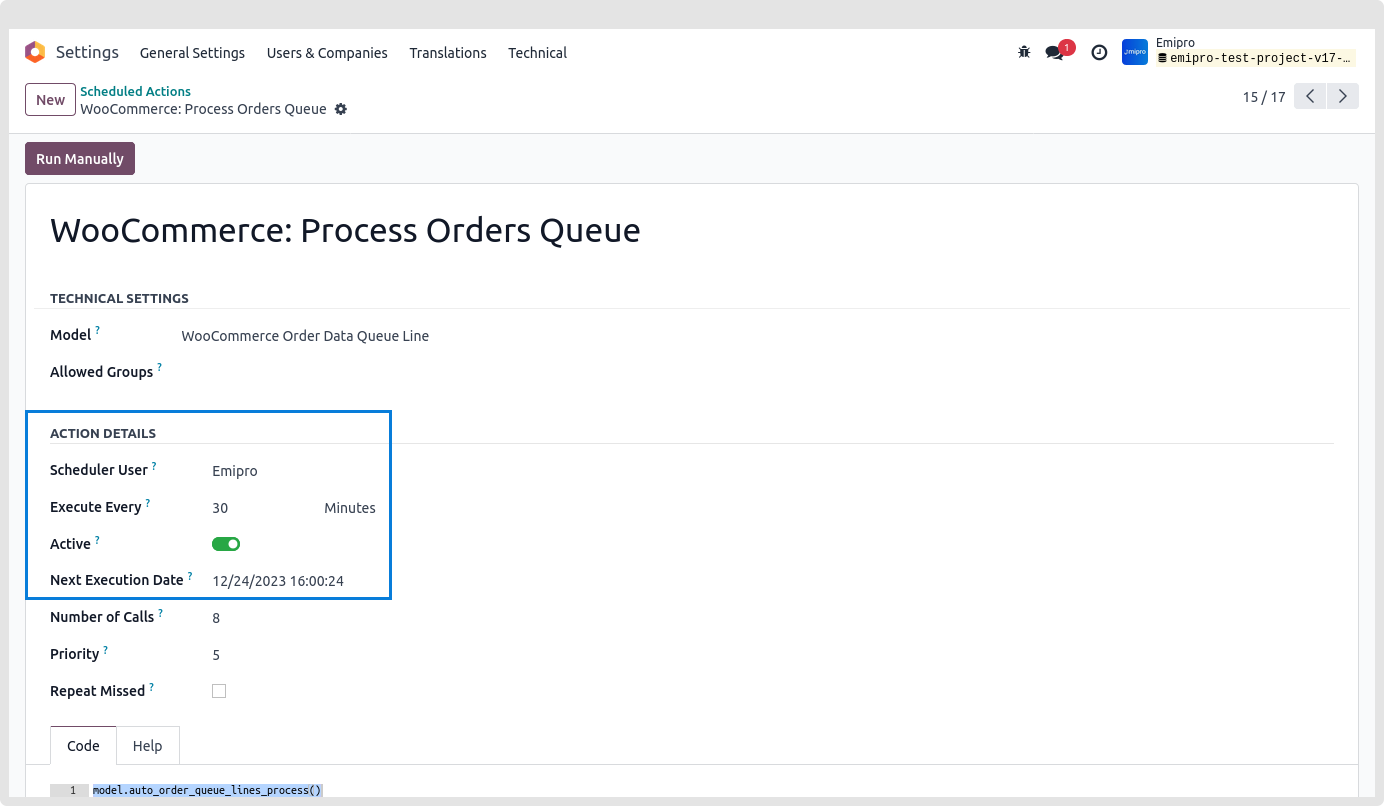
Here you need to set the time and date as per your requirement.
In order to process that queue you need to also activate the scheduled actions. This scheduled action will be available in the scheduled action option of odoo. Here you will find the scheduled action called Process Order Queue.
Note:
It will only import new orders only. It will not update the order. It is advisable to keep scheduler time for a minimum 15 minutes to make it work accurately. It is recommended to keep a few minutes difference in each scheduler so that time does not clash. And to avoid conflict. Same is recommended for scheduled actions as well.
Update Order Status in WooCommerce:
Update order status in WooCommerce will help in case when the delivery will be done from the WooCommerce Connector. By activating this scheduler it will automatically update the order status at WooCommerce Store.
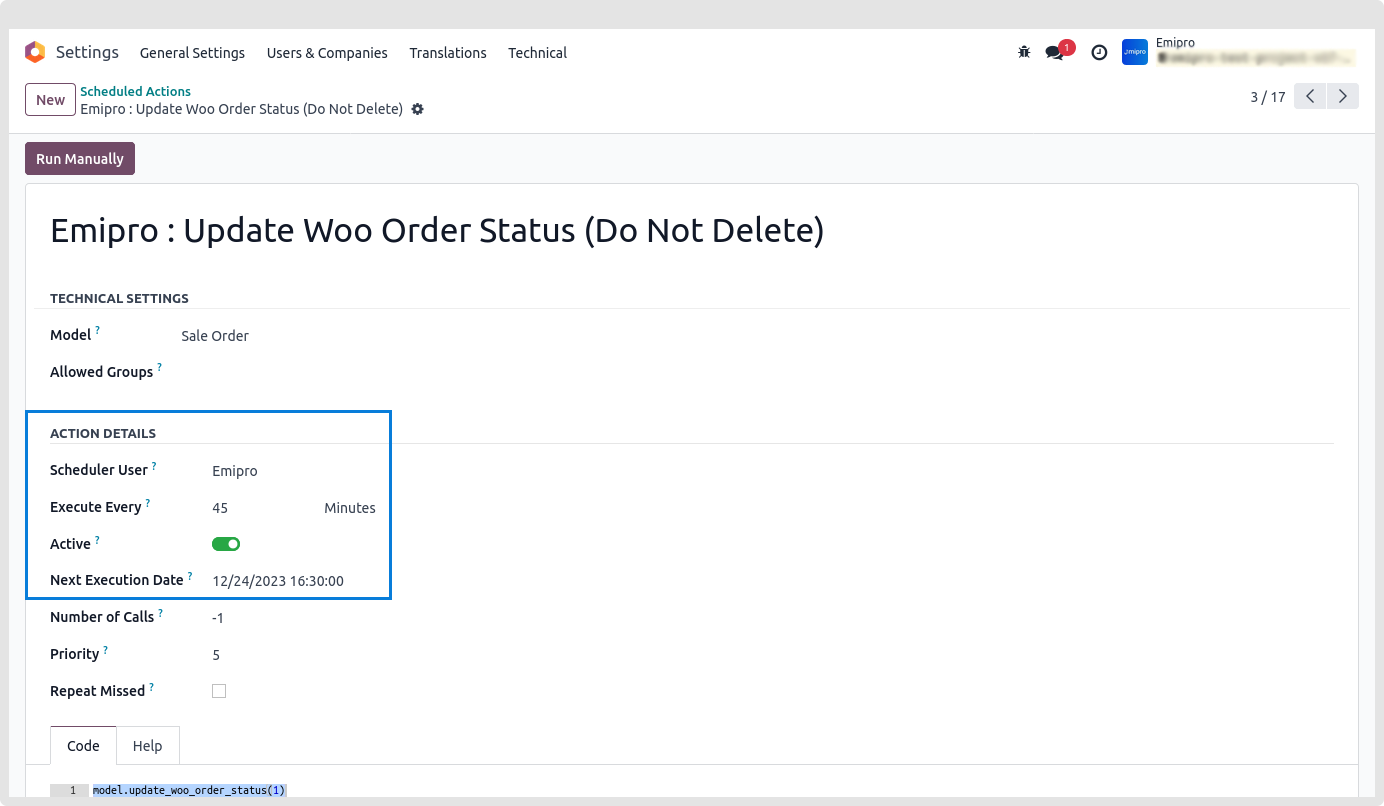
Here you need to set the time and date as per your requirement.
In order to process the queue automatically you need to also activate the scheduled actions of Update Woo Order Status (Do Not Delete).
Note:
It will only import new orders only. It will not update the order. It is advisable to keep scheduler time for a minimum 15 minutes to make it work accurately. It is recommended to keep a few minutes difference in each scheduler so that time does not clash. And to avoid conflict. Same is recommended for scheduled actions as well.
Import Cancel orders:
Import cancel order will import all the cancel orders from WooCommerce Store to WooCommerce Connector. For that order must exist in the WooCommerce Connector either in Shipped or in Un Shipped state. By this way it will automatically create the cancel order queues in the connector. Here you need to set the time and date as per your requirement.
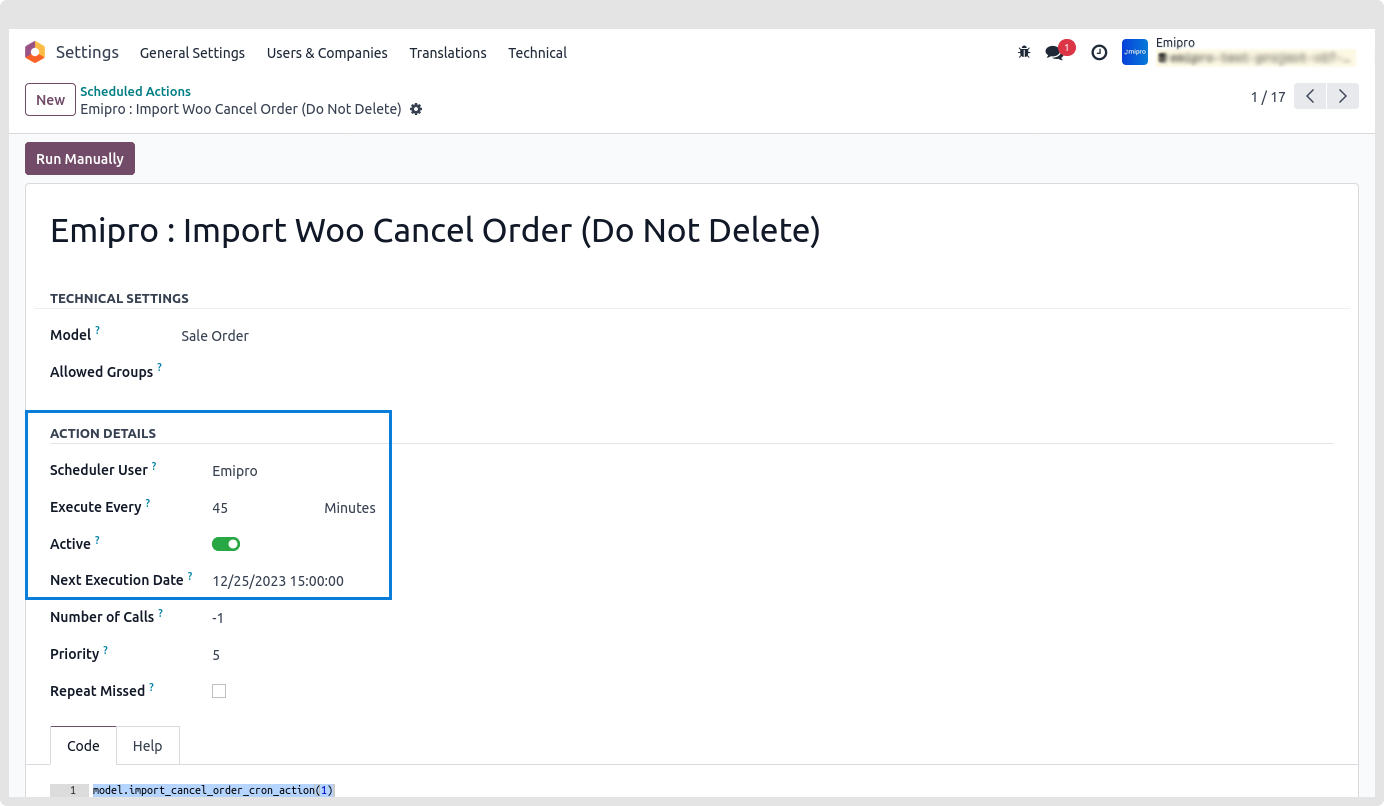
In order to process the queue automatically it is necessary to activate the scheduled action called Import Woo Cancel Order.
Note:
It will only import new orders only. It will not update the order. It is advisable to keep scheduler time for a minimum 15 minutes to make it work accurately. It is recommended to keep a few minutes difference in each scheduler so that time does not clash. And to avoid conflict. Same is recommended for scheduled actions as well.
Scheduler for Export Stock
Export Stock scheduler will help to export stock from the WooCommerce Connector to WooCommerce Store automatically. It will automatically create an export stock queue. In order to process the queue automatically you need to activate the process export stock queue.
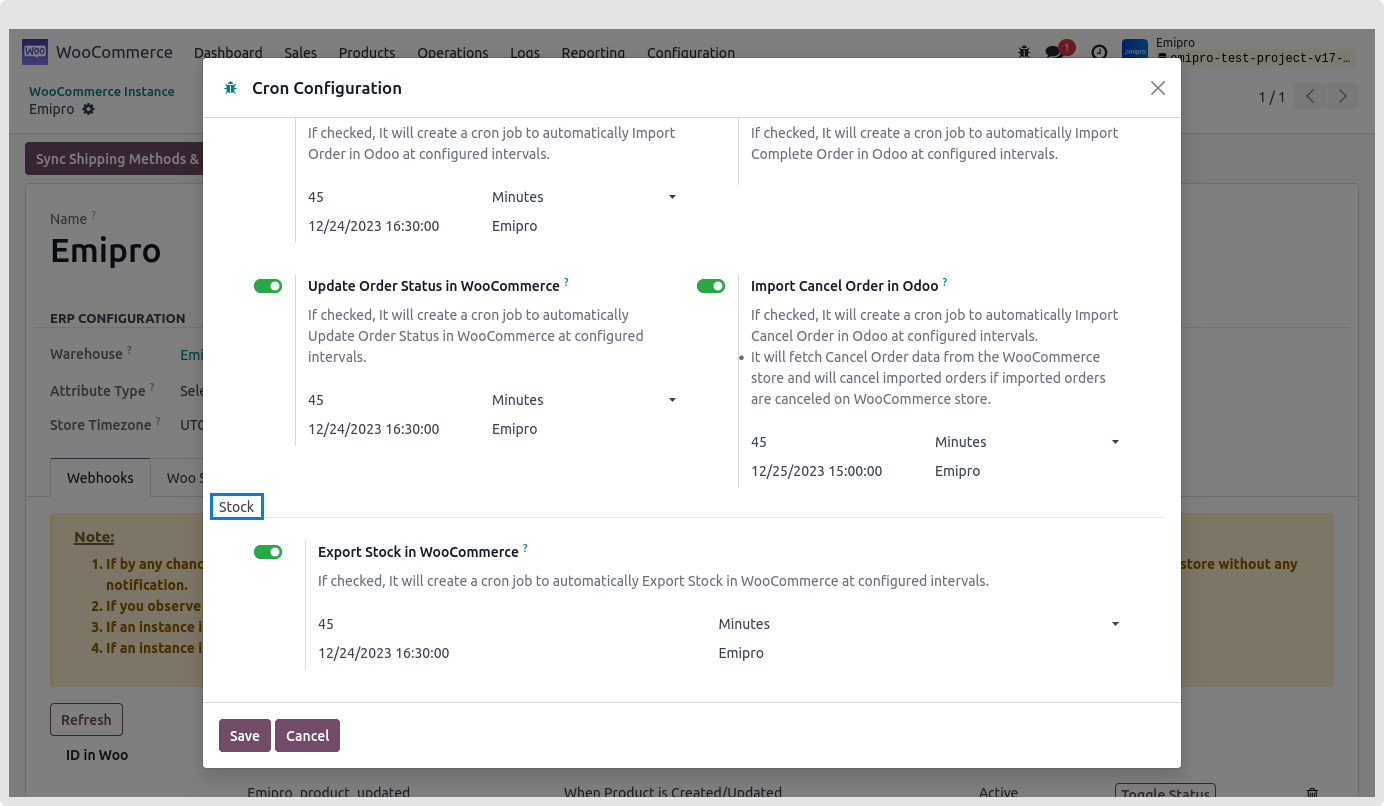
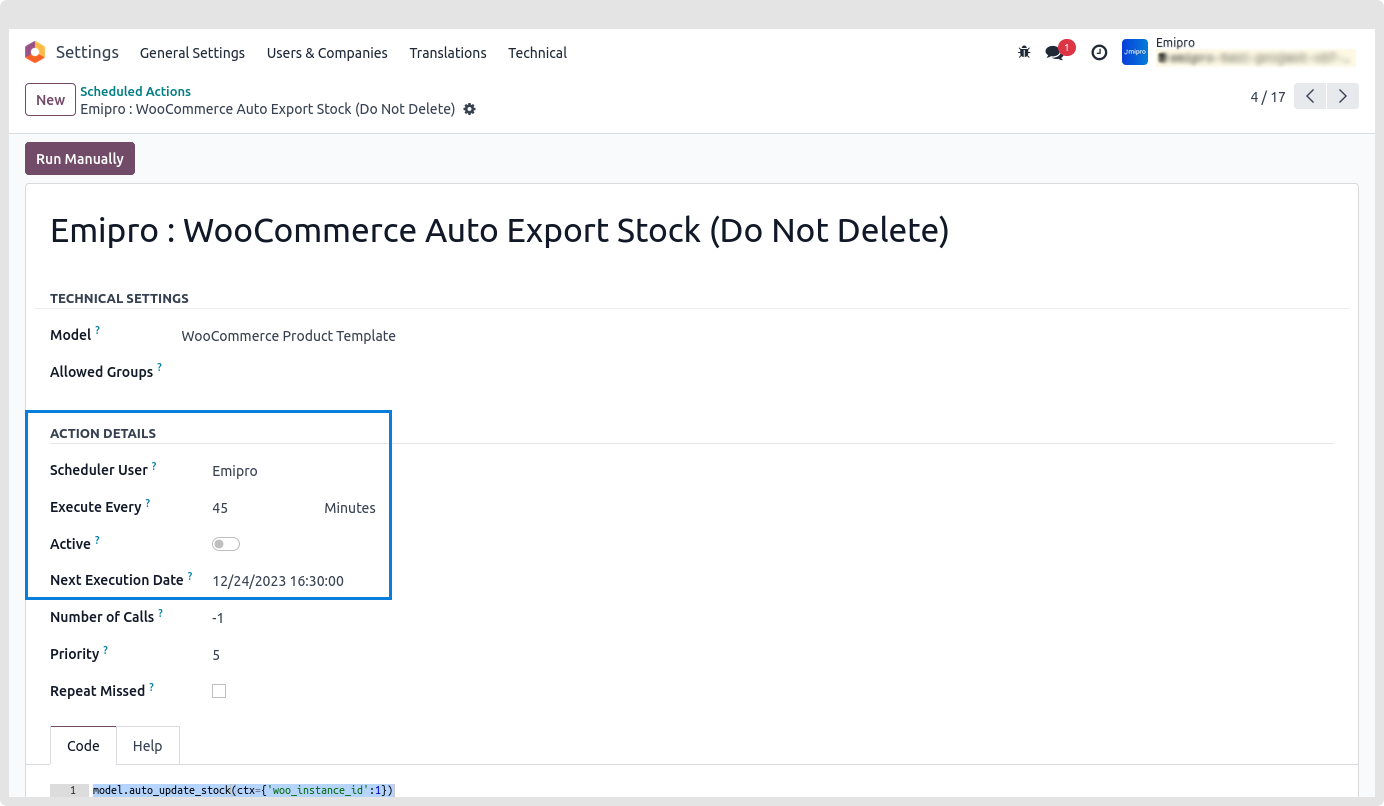
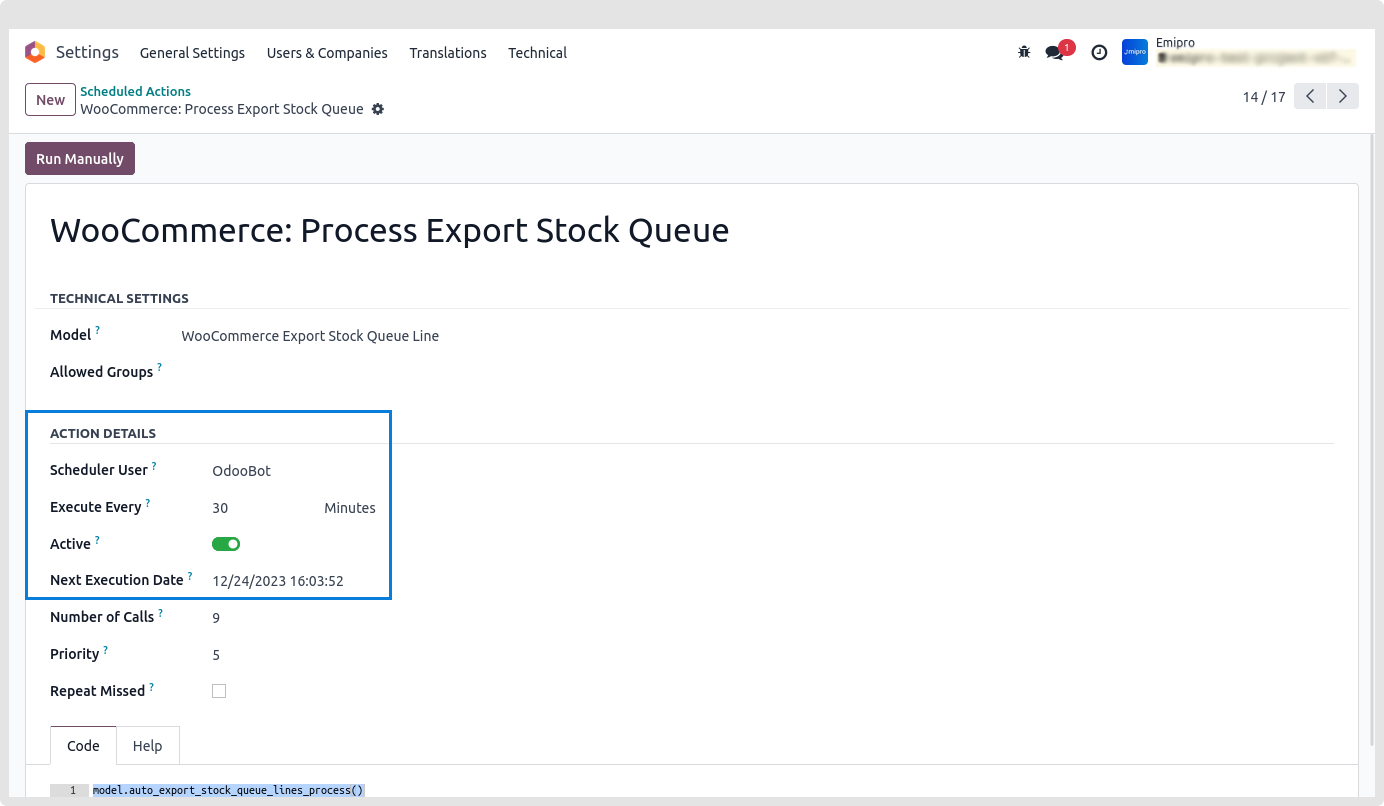
Here you need to set the time and date as per your requirement.
Note:
- It is recommended to keep a few minutes difference in each scheduler so that time does not clash. And to avoid conflict. Same is recommended for scheduled actions as well.
- It is also necessary that you time to time update the inventory in odoo in order to export the correct stock at WooCommerce Store.